Delete and restore a geozone
Delete a zone when the place it marks is no longer watched — a closed rest stop, a duplicate drawn by mistake. Deleting is safe to undo: the zone is kept out of sight, and it can be restored later from Show deleted.
Before you start
- Your role must allow you to delete geozones (Supervisor, Operational manager and System admin can). The same right lets you restore one. If you do not have it, Delete geozone is not in the row's menu and Restore is not shown. See What each role can do.
- Check whether an alert policy points at the zone. A zone a policy uses cannot be deleted: change the policy first (see below).
Delete a zone
-
On Geozones, find the zone — searching for it is quickest.
-
Select the ⋯ button on its row, then Delete geozone.
-
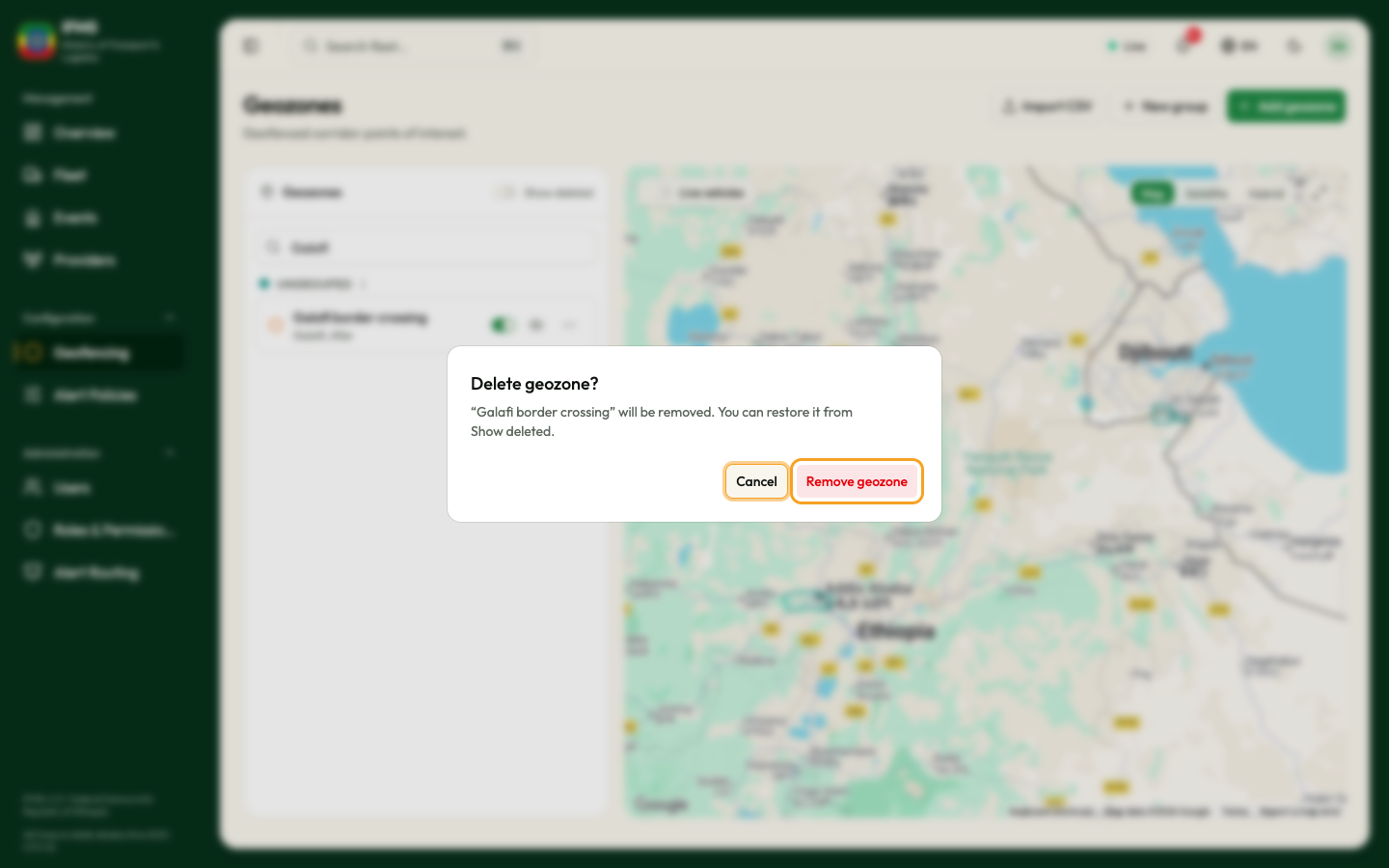
The question Delete geozone? appears, with the line "“zone name” will be removed. You can restore it from Show deleted."
-
Select Remove geozone to go ahead, or Cancel to keep the zone.
The message Geozone deleted confirms it. The zone leaves the list and the map, and IFMS stops testing vehicles against it. If something else goes wrong, the message Could not delete geozone appears and nothing is removed.
When an alert policy uses the zone
IFMS refuses to delete a zone that an alert policy is set to watch, so that the policy is not left watching nothing. You see one of these:
-
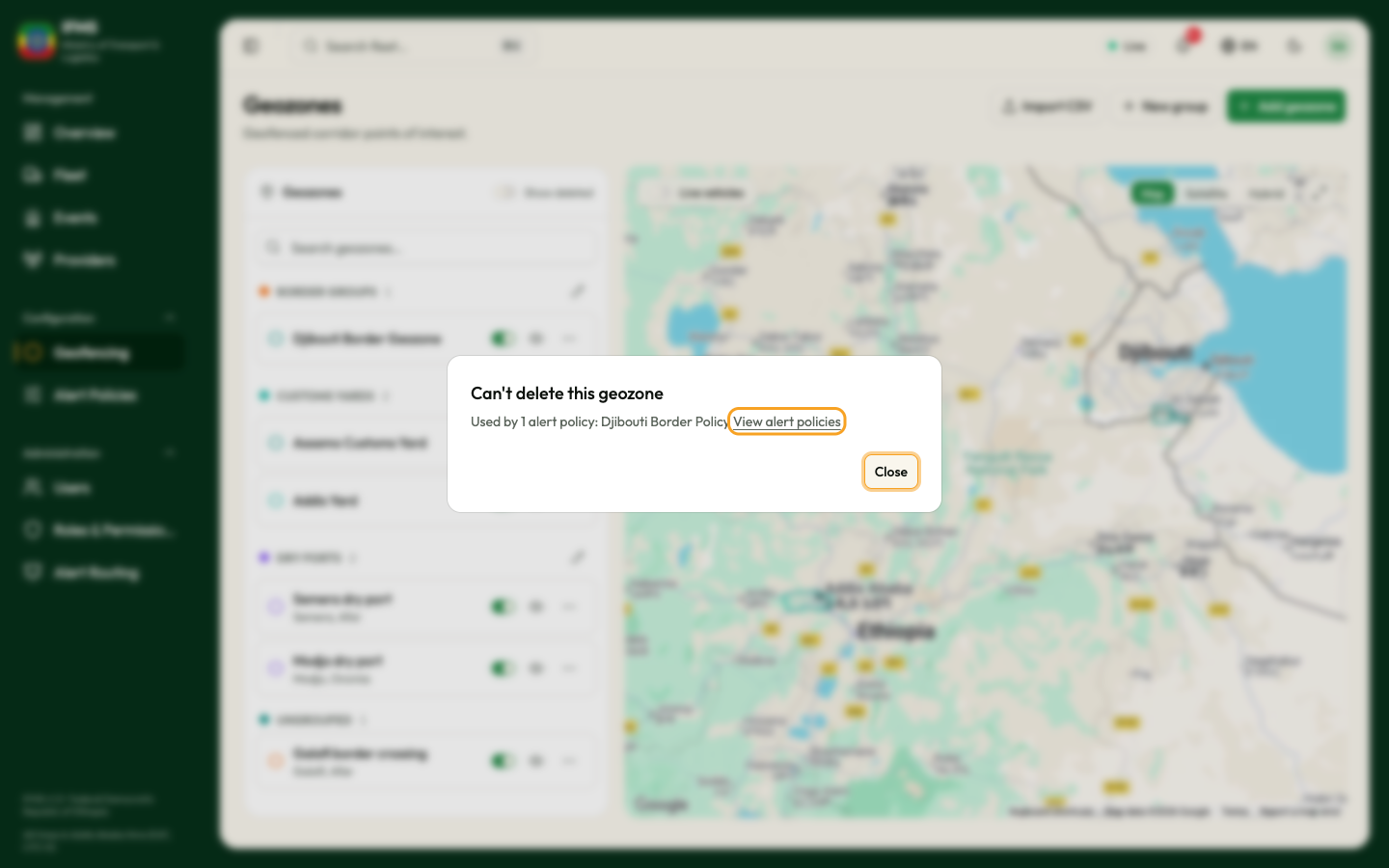
The window Can't delete this geozone, with "Used by 1 alert policy:" or "Used by N alert policies:" and the policy names, a View alert policies link and Close.
-
Or the red message "This geozone is used by: #number policy name, …. Change those policies first."
Nothing has been removed. Select View alert policies, then edit each policy named — point it at another zone or group — or delete it. Then delete the zone again.
A policy that watches a group the zone belongs to does not stop you from deleting the zone: the policy carries on watching the rest of the group.
Restore a deleted zone
-
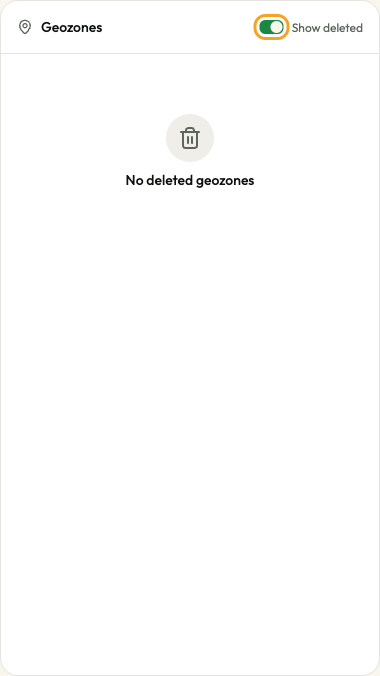
On Geozones, switch on Show deleted above the list. The list now shows the deleted zones, each with its name, its address and a Restore button.
-
Select Restore on the zone you want back.
The message "“zone name” restored. It is switched off; turn it on when it should be watched again." confirms it. Switch Show deleted off: the zone is back in the list with its groups, marked Inactive. Select its switch when IFMS should watch it again (see Switching a zone on and off).
No deleted geozones means nothing has been deleted.
Names and deleted zones
Two zones in use can never have the same name — IFMS ignores capital letters and spaces at either end when it compares names. A deleted zone does not count: you can give its name to a new zone. But that means a restore can be refused:
- The red message A geo-zone with this name already exists. after Restore means a zone in use has taken the name since. Rename or delete that zone first, then restore.