Fleet
Fleet is the list of every vehicle IFMS monitors. It shows what each vehicle is doing right now, who reports it, its operator and how many alerts are open against it.
Only legal vehicles appear here. IFTMS, the Ministry's vehicle register, decides whether a vehicle is legal. Verified and legal mean the same thing.
Nobody adds vehicles here. A vehicle appears after IFTMS says it is legal and IFMS accepts a position for it. A new plate is first refused while IFMS asks IFTMS. Refused positions are never stored.
A plate is reported by one provider only. Positions for the plate from a second provider are refused, so a vehicle never appears twice. See One provider per plate.
If a vehicle stops being legal, it disappears from Fleet, search, details and maps. Its stored history is kept but hidden. Its Legality violation alert stays in Events, without a vehicle link.
Who can see this screen
Anyone whose role allows them to see vehicles: Operator, Supervisor, Operational manager and System admin. If your role does not include it, Fleet is missing from the sidebar, and opening the address directly shows "Access denied" with a Back to overview button. See What each role can do.
How to open it
- In the sidebar, under Management, select Fleet.
The screen lists legal vehicles.
The screen at a glance
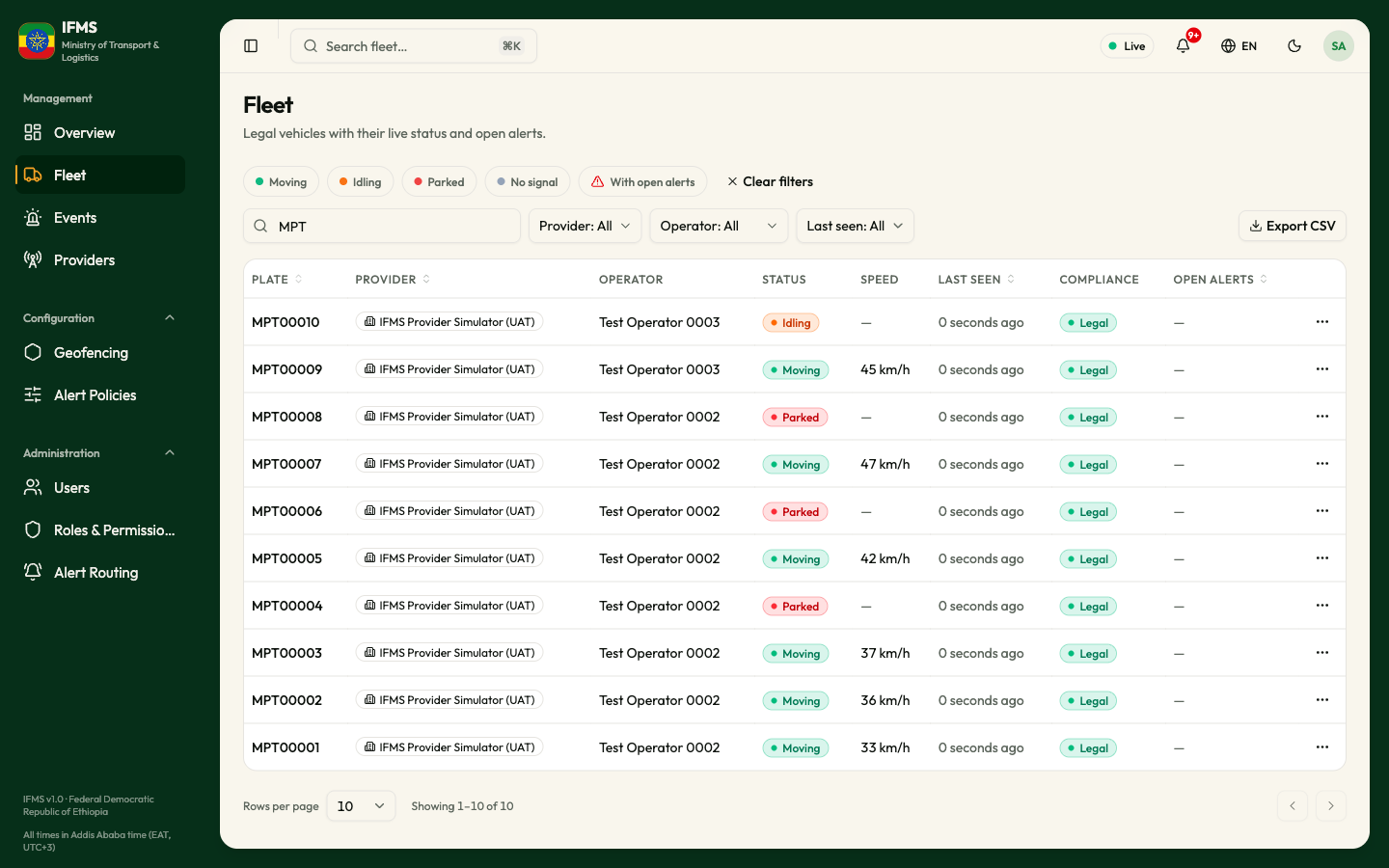
From top to bottom:
- a row of buttons for the movement state, and With open alerts;
- the search box, the filters and Export CSV;
- the table of vehicles, with the page controls underneath.
The list refreshes itself every 30 seconds. Everything you choose — the search, the filters, the sort order and the page — is kept in the address bar, so you can bookmark the view or send the link to a colleague and they will see the same list.
Narrow the list
Movement state and open alerts

- Select one or more of Moving, Idling, Parked and No signal. The list shows vehicles in any of the states you selected.
- To see only vehicles with at least one open alert, select With open alerts (the button with the red triangle).
- To turn a button off, select it again.
A selected button is outlined in colour. A vehicle that has never reported a position matches none of the four states. For what each state means, see Movement state below.
Clear filters appears at the end of this row as soon as any search, button or filter is on. Selecting it clears all of them at once.
Search

Type in the box marked Search plate, provider or operator…. It matches any part of the plate, the description, the provider's code or name, and the operator's name. The search starts on its own shortly after you stop typing and takes you back to the first page.
Filters
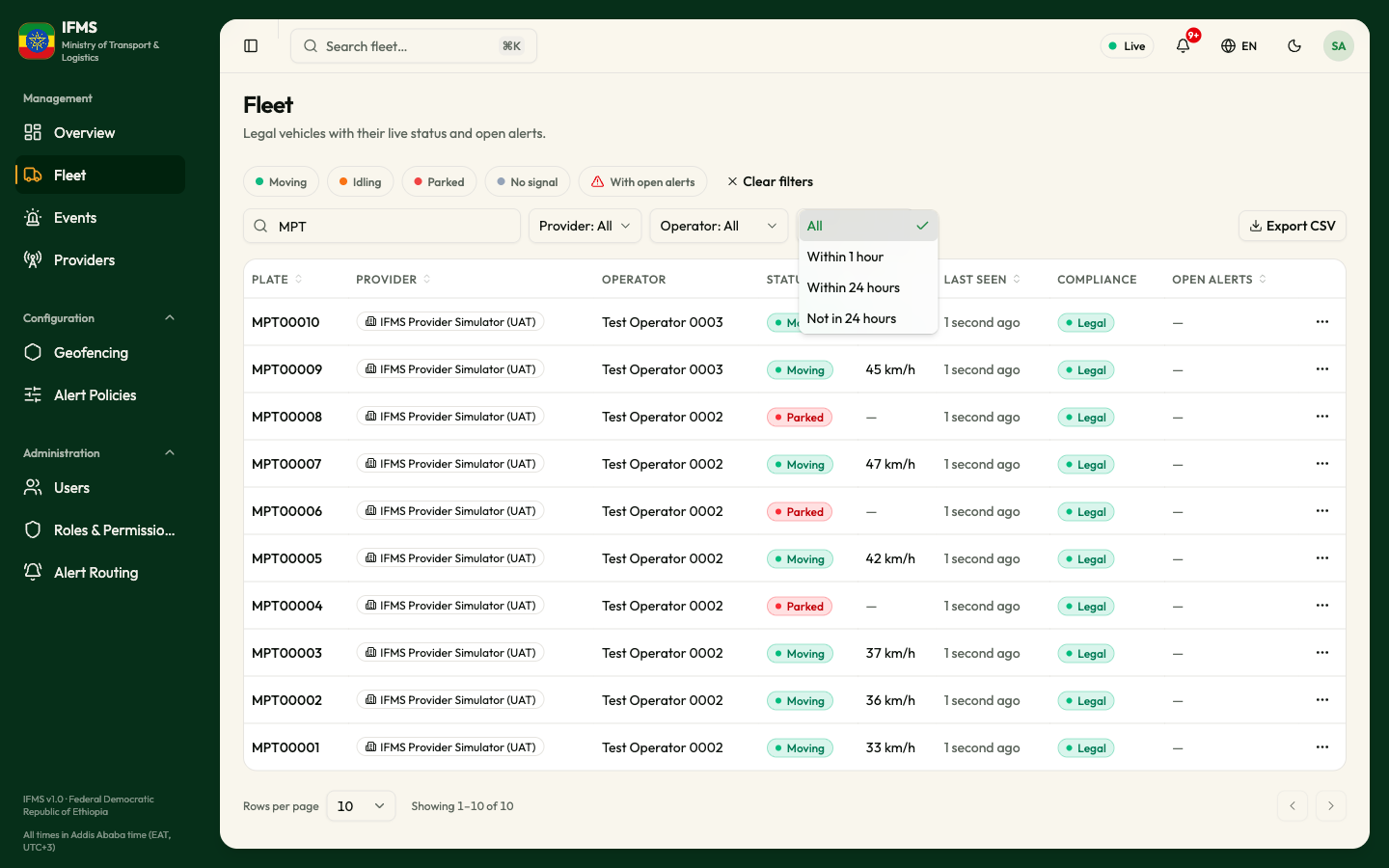
Each filter reads <name>: All until you choose something. Every list
starts with All, which turns the filter off. Changing a filter takes you
back to the first page.
| Filter | Options | What it does |
|---|---|---|
| Provider | Every provider | Shows only that provider's vehicles. |
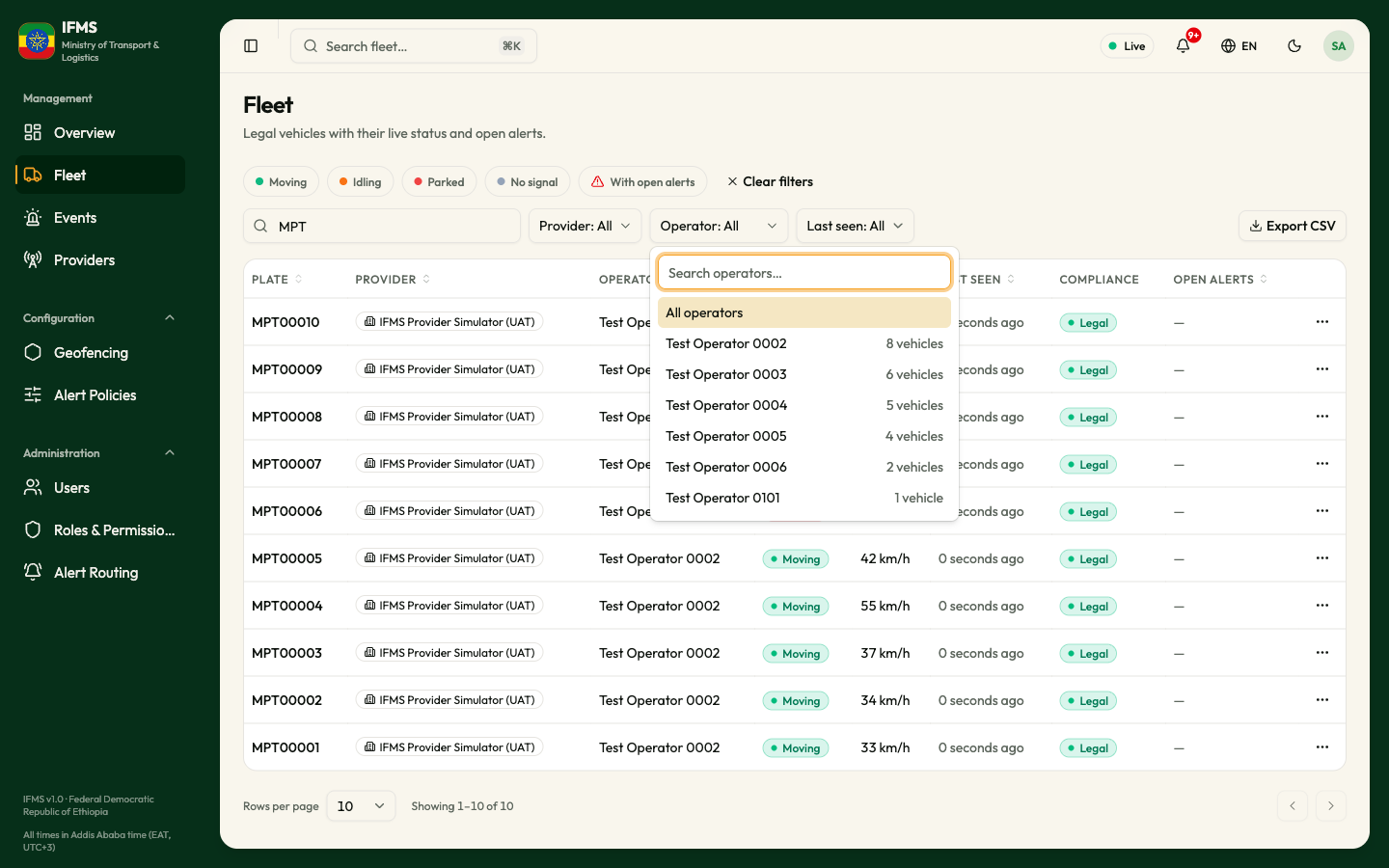
| Operator | All operators, then every operator with the number of vehicles it runs | Shows only that operator's vehicles. See Filter by operator. |
| Last seen | Within 1 hour, Within 24 hours, Not in 24 hours | Narrows by when the vehicle last sent a position. |
All the buttons, the search and the filters combine: a vehicle must match every one of them to be listed.
Filter by operator
The operator is the transport company that is legally responsible for a vehicle. One provider can track vehicles for many operators. IFMS takes the operator from IFTMS, the Ministry's freight register, using the plate; the providers do not send it.
-
Select Operator: All, to the right of Provider.
-
A list opens with every operator and how many vehicles it runs. To find one quickly, type part of its name in Search operators….
-
Select the operator. The list shows only its vehicles, and the filter reads Operator: followed by the operator's name. A long name is shortened; rest the pointer on the filter to read it in full.
-
To see every operator again, open the filter and select All operators, or select Clear filters.
Like the other filters, your choice is kept in the address bar, so a link you send to a colleague opens on the same operator.
The table
| Column | What it shows |
|---|---|
| PLATE | The plate number. |
| PROVIDER | The provider that reports the vehicle. |
| OPERATOR | The transport company responsible for the vehicle, from IFTMS. An empty value means no operator name was supplied. |
| STATUS | The movement state as a coloured badge, or Never reported in grey if IFMS has never received a position. |
| SPEED | The speed in km/h while the vehicle is Moving; otherwise "—". |
| LAST SEEN | How long ago the last position arrived. Rest the pointer on it for the full date and time. |
| COMPLIANCE | The IFTMS decision. Every vehicle shown here is legal. |
| OPEN ALERTS | How many alerts are open against the vehicle, in a bubble coloured by the most serious one; "—" when there are none. |
| ⋯ | A menu of actions for the vehicle. See Row actions. |
For the colours of every badge, see Statuses and colours.
Movement state
IFMS works out the state of every vehicle from the positions its provider sends:
| State | Colour | What it means |
|---|---|---|
| Moving | Green | Travelling faster than 3 km/h, whatever the ignition says. |
| Idling | Orange | Standing still with the engine on, or with the engine state not reported. |
| Parked | Red | Standing still with the ignition off. |
| No signal | Grey | No fresh position for more than 10 minutes. |
| Unknown | Pale grey | The portal received a state it does not recognise. |
Sort the table
You can sort by PLATE, PROVIDER, LAST SEEN and OPEN ALERTS.
- Select the column heading once to sort from lowest to highest.
- Select it again to sort from highest to lowest.
- Select it a third time to go back to the normal order.
Open a vehicle
Select a row anywhere to open its quick view. The ⋯ button opens the row actions menu.
Row actions
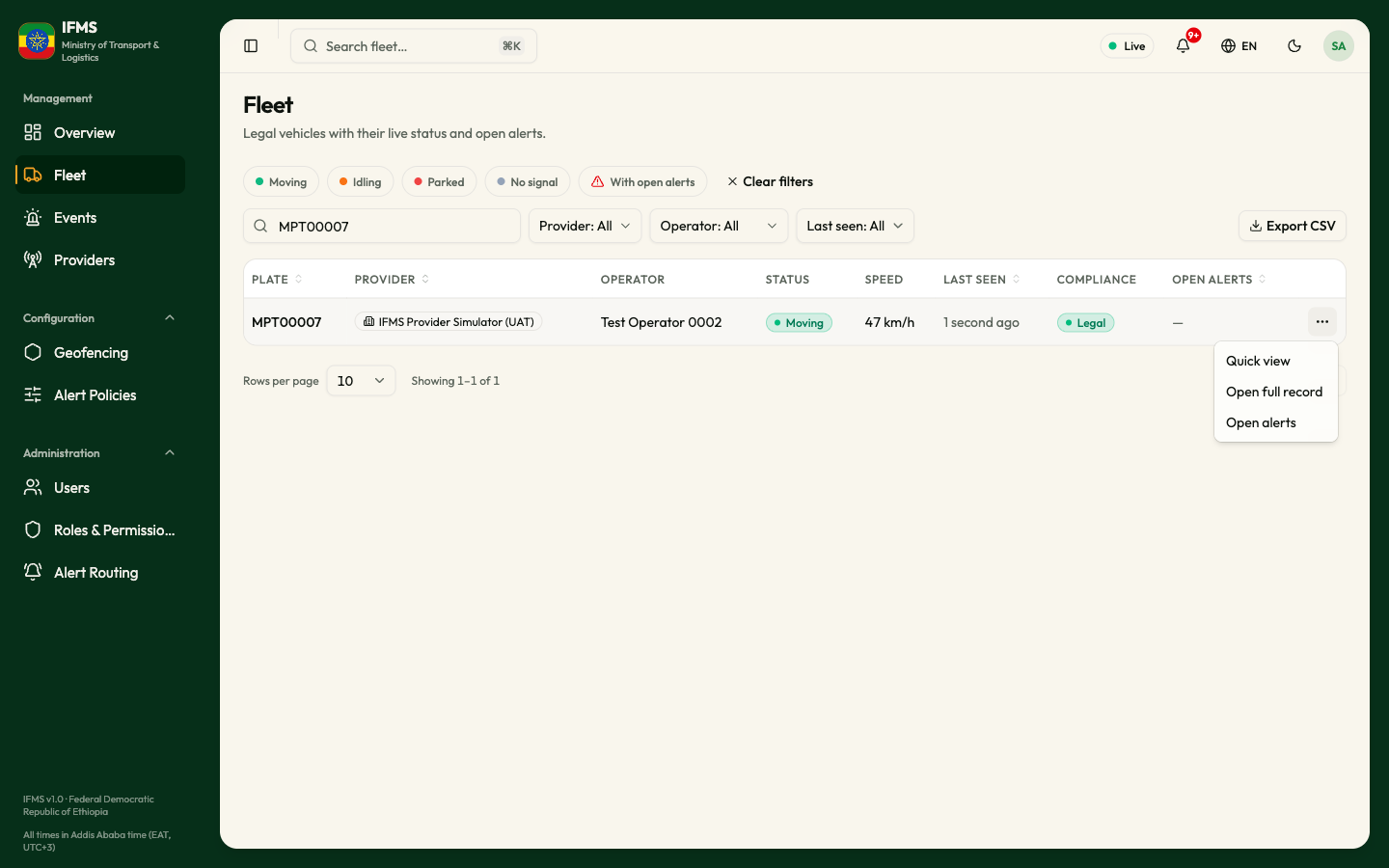
- Select ⋯ at the end of the row.
- Choose one of:
- Quick view — opens the quick view, as selecting the row does.
- Open full record — opens the vehicle's own page.
- Open alerts — opens Events, showing only this vehicle's alerts that are not yet resolved.
The quick view
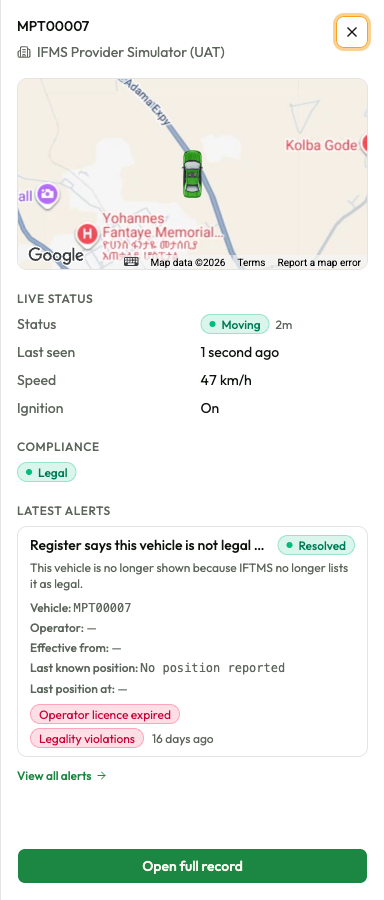
The quick view is a panel that slides in from the right with the essentials of one vehicle, so you can decide whether to open the full record.
| Part | What it shows |
|---|---|
| Title | The plate, with the provider's name and the provider underneath. |
| Map | Where the vehicle is, as a car in the colour of its movement state. If no position has been received you see "No position reported yet." or "Never reported" instead. |
| LIVE STATUS | Status with how long the vehicle has been in that state, Last seen, Speed (only while moving) and Ignition (On, Off, or "—" when the provider does not report it). For a vehicle that has never reported you see "IFMS has never received a position for this vehicle." |
| COMPLIANCE | The IFTMS decision. Every vehicle shown here is legal. |
| LATEST ALERTS | Up to five of the vehicle's most recent alerts, open or not: the policy name, its status (Open, Acknowledged or Resolved), its kind and how long ago it was raised. View all alerts opens Events showing all of this vehicle's alerts. |
At the bottom, Open full record opens the vehicle's own page.
To close the panel, select the X at the top right, press Esc, or select anywhere outside it.
The quick view only shows information. So does the full record: vehicles cannot be edited or removed in IFMS.
| Message in the quick view | What it means |
|---|---|
| "No alerts on record." | No alert has ever been raised against this vehicle. |
| "Could not load this vehicle's alerts." | The alerts could not be fetched. Close the panel and open it again. |
Export the list
- Set the search, buttons, filters and sort order you want.
- Select Export CSV, to the right of the filters.
The file ifms-fleet-YYYY-MM-DD.csv (with today's date) is downloaded. It
holds every vehicle that matches your search and filters, in your sort
order — not just the page you are looking at.
| Column in the file | What it holds |
|---|---|
| Plate, Provider | The vehicle and who reports it. |
| Operator | The operator's name from the IFTMS register. Empty when there is none. |
| Status, Speed | The movement state, and the speed while moving. |
| Last seen (UTC) | The date and time of the last position, in UTC. |
| IFTMS decision | LEGAL. Only legal vehicles are exported. |
| Open alerts | How many alerts are open. |
If the export fails, you see "The export failed. Try again." Select Export CSV again.
Moving through the pages
Under the table:
- Rows per page — 10 (the default), 20, 50 or 100.
- Showing 1–10 of 74 — which rows you are looking at and how many match.
- The < and > arrows move one page back or forward.
The page controls are hidden when nothing matches. If a change of filter leaves fewer pages than the one you were on, the list moves back to the last page that exists.
When the list is empty, loading or broken
| What you see | What it means | What to do |
|---|---|---|
| Six grey placeholder rows | The list is loading. | Wait a moment. |
| "No vehicles match" / "Try a different search, or clear the filters." | Nothing matches what you chose. | Select Clear filters. |
| "This list could not be loaded" / "Nothing is shown because the request failed, not because there is nothing to show." | The request failed. | Select Try again. If it keeps failing, quote the reference shown in the message to support. |
| "You don't have access to this list" / "Your role does not include permission to view it. Ask an administrator if you need it." | Your role does not allow you to see vehicles. | Ask an administrator. |
Tips
- A vehicle that stops being legal disappears from this list. Look for its legality alert in Events.
- To share exactly what you are looking at — say, every vehicle whose driver licence has expired — set the buttons and filters, then copy the address from your browser.