Handle an alert
You will open one alert, work out what it is telling you, take ownership of it so that everybody can see somebody is dealing with it, and close it with a note saying what was done.
Three states, in order:
| State | Badge | What it means |
|---|---|---|
| Open | sky blue | Raised. Nobody has picked it up. The response clock is running. |
| Acknowledged | amber | You have taken ownership. The response clock stops. |
| Closed | green | Finished with. |
You can go straight from Open to Closed without acknowledging, and you often will for something you dealt with on the spot. Closing is final: there is no way to reopen an alert.
Before you start
- Your role must allow you to acknowledge and to close alerts. Operator, Supervisor, Operational manager and System admin can all do both. If yours does not, the buttons are simply absent from the panel. See What each role can do.
- Both actions demand a note. Decide what you are going to write before you open the dialog: keep it under 500 characters, because a longer note is refused when you save and nothing on screen counts the characters for you.
Open the alert
- Open Events from the sidebar, under Management.
- Find the alert. Status: Open and Alert kind: All alert kinds is the quickest way to the unhandled ones.
- Select the row anywhere. The detail panel slides in from the right.
An alert opened from your Inbox or from the notifications bell arrives with the panel already open.
Close the panel with its X, the Esc key, or by selecting outside it.
Opening an alert adds it to the address of the page, and closing the panel does not take it away. If you reload the screen, the panel opens again. Navigate to Events from the sidebar to get a clean list.
Read the panel
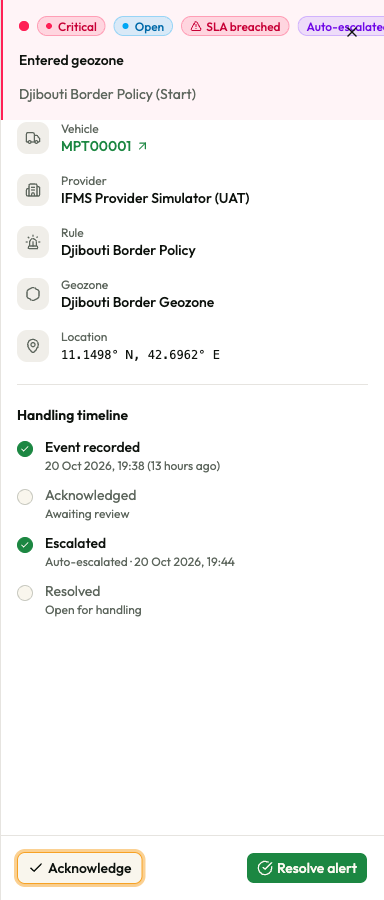
The heading
The heading carries, in order: the severity badge, the status badge, then SLA breached (red, with a warning triangle) if the response window has been missed, then Escalated (L1) (violet) if IFMS has escalated the alert. Under them, the kind of event as a title — for example Speeding — and the alert's message.
A red left edge, a pale red background and a pulsing dot mean this one is urgent: it is either an open Critical alert or one that has missed its response window.
The information rows
Rows marked "when there is one" are shown only when IFMS has something to put in them.
| Row | What it tells you |
|---|---|
| Vehicle | The plate. A legal vehicle links to its page. A hidden vehicle on a legality alert has no link. |
| Plate (as reported) | When there is one. The plate exactly as the sending system wrote it, when that differs from the vehicle IFMS matched it to. |
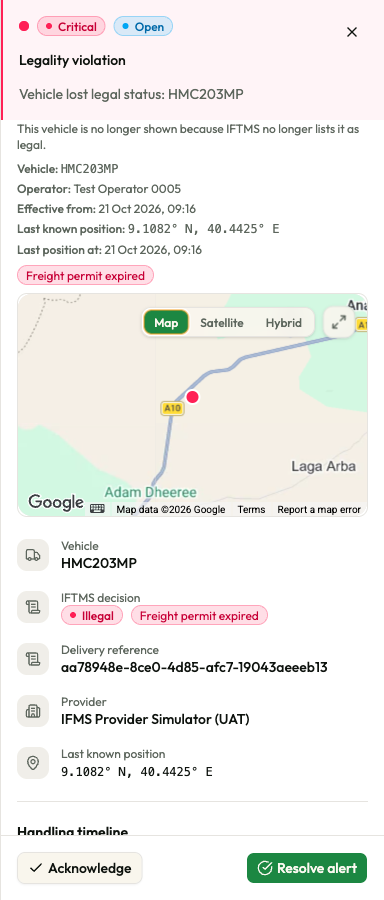
| IFTMS decision | On a legality alert, the decision and reason codes. An unfamiliar reason is shown exactly as received. |
| Delivery reference | When there is one — legality violations only. The reference of the message the decision came in. Quote it when asking the IFMS team about a decision. |
| Provider | The GPS company that reported the vehicle, or "—". |
| Rule | The policy's name. In practice this row never appears; see the caution below. |
| Geozone | When there is one. The area the policy watches. |
| Location | Coordinates, for example 9.0301° N, 38.7468° E. |
On a rule event, Location is the geozone centre. Without a geozone, it is a fixed point near Addis Ababa. For a legality alert, use its last known position and position time, when available. This is the last stored position, not a new report after legality was lost.
IFMS does not send the policy's name with the alert, so the Rule row stays hidden. The policy name is still there, inside the message: a rule event reads "<policy name> (Start)" or "<policy name> (End)".
The handling timeline
Handling timeline is the record of what has been done. A filled circle with a tick means the step has happened; a hollow circle means it has not.
| Step | When it is ticked | What the detail line says |
|---|---|---|
| Event recorded | Always | When the alert was raised, and how long ago. |
| Acknowledged | Once somebody has taken ownership | Who and when, or "Awaiting review". |
| Escalated | Only shown at all if IFMS escalated the alert | "Level 1" and the time. |
| Closed | Once the alert is closed | Who and when, or "Open for handling". |
Underneath, in grey boxes, are the Acknowledgement note and the Resolution note where they exist. These are the only place either note is ever shown.
Closing an alert straight from Open is allowed, so a finished alert whose Acknowledged step is still hollow is normal, not a fault.
Handle a legality violation
-
In Events, set Alert kind to Legality violations. The default Rule events view hides these alerts.
-
Open the alert marked Critical (
LEGALITY_VIOLATION). Read the plate, operator, reason codes and the time the change took effect. -
Read the last known coordinates and position time. These values can be empty if IFMS has no stored position. The operator can also be empty if IFTMS supplied none.
-
Use those details to follow up with the operator or IFTMS. Acknowledge and close the alert with notes as described below.
IFMS raises one alert for each loss of legality by a vehicle that was legal. It refuses all new positions for that vehicle and hides it from every vehicle view. The alert stays in Events with no vehicle link. Other alerts for the hidden vehicle are hidden from the list and summary.
A plate that was never legal raises no legality alert. If a vehicle becomes legal again and later loses legality, IFMS raises a new alert. Closing an alert does not make a vehicle legal.
Acknowledge the alert
Acknowledging says "I have this". It stops the response clock and puts your name against the alert for everyone else.
-
With the panel open on an Open alert, select Acknowledge at the bottom left of the panel.
-
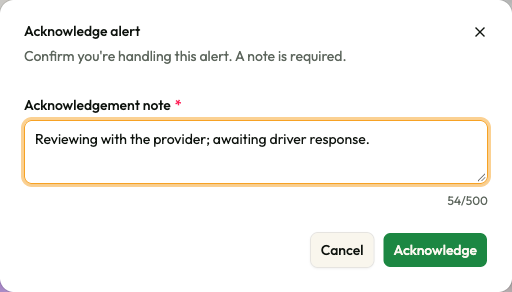
The dialog Acknowledge alert opens: "Confirm you're handling this alert. A note is required."
-
Type what you are doing into Acknowledgement note. The placeholder suggests the tone: "e.g. Reviewing with the provider; awaiting driver response."
-
Select Acknowledge.
| Field | Required | What to enter | Rules and messages |
|---|---|---|---|
| Acknowledgement note | Yes | What you are doing about the alert and who you are waiting on. Four lines of room. | The Acknowledge button stays greyed out until the box has something in it other than spaces. Notes longer than 500 characters are refused when you save, with a red message in the corner; nothing counts the characters for you. |
What happens next. The message Event acknowledged appears, the dialog closes and the panel stays open. The status badge becomes Acknowledged, the timeline's Acknowledged step fills in with your name and the time, and any Breached badge disappears. The list and the count cards refresh. Nobody is notified that you acknowledged it.
If you acknowledge while the list is filtered to Status: Open, the alert no longer belongs on the page you are looking at, so it drops off the list and the panel closes on its own. Nothing has gone wrong. Set Status to All statuses first if you want to keep reading.
An alert that is already Acknowledged shows no Acknowledge button. Acknowledging cannot be undone, the note cannot be edited afterwards, and a second person cannot take the alert over. If the note needs correcting, put the correction in the resolution note when you close the alert.
Close the alert
Closing records how the matter ended. It is available from Open as well as from Acknowledged.
-
With the panel open, select Resolve alert at the bottom right.
-
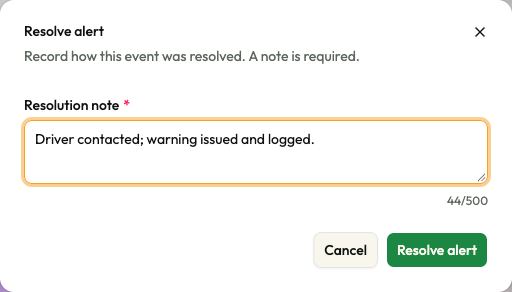
The dialog Resolve alert opens: "Record how this event was resolved. A note is required."
-
Type what was done into Resolution note. The placeholder suggests "e.g. Driver contacted; warning issued and logged."
-
Select Resolve alert.
| Field | Required | What to enter | Rules and messages |
|---|---|---|---|
| Resolution note | Yes | What was actually done, and by whom outside IFMS — the call made, the warning issued, the reference of any enforcement action. This note is the permanent record, and it is the only note that appears in an exported file. | The Resolve alert button stays greyed out until the box has something in it other than spaces. Notes longer than 500 characters are refused when you save. |
What happens next. The message Event closed appears. The status badge becomes Closed (green), the row loses its colouring in the list, the action buttons disappear from the panel, and the Resolved count card goes up. Nobody is notified.
There is no reopen. A closed alert can only be read.
Closing also frees the rule to raise the same alert again. While an alert from a policy is open or acknowledged, that same policy will not raise another one for that vehicle and that edge. The moment you close it, the next time the condition happens a fresh alert is raised. That is the intended behaviour — it is how a recurring problem keeps coming back to you — but it means closing a repeat offender before the cause is fixed will produce a new alert shortly afterwards.
If something goes wrong
| What you see | What it means | What to do |
|---|---|---|
| Acknowledge or Resolve alert stays greyed out | The note box is empty or contains only spaces. | Type a note. |
| "A note is required to continue" | The note was empty. | Type a note and try again. |
| A red message in the corner when you save | The note was too long (over 500 characters), or the request failed. | Shorten the note to a couple of sentences and try again. |
| "The alert is not in a state that allows this action." | Somebody closed the alert while your panel was open, and a closed alert cannot be acknowledged. | Close the panel, reload the screen and read the timeline to see who closed it. |
| No buttons at the bottom of the panel on an open alert | Your role does not allow acknowledging or closing. | Ask a supervisor to handle it, or your administrator for the right role. |
| The panel closes as soon as you act | The alert no longer matches the filters. | Expected. Set Status to All statuses and find the alert again. |
What IFMS does not offer here
To save you looking for them:
- no reopen;
- no manual escalate — escalation is automatic (Response times and escalation);
- no assign to a colleague, and no comments or discussion thread;
- no way to acknowledge or close several alerts at once;
- no way to edit either note after saving.