Export the alert list
You will save alerts from the Events screen as a .csv file — a
plain spreadsheet file that opens in Excel, LibreOffice or Google Sheets — so
they can go into a shift report, a monthly count or a message to a provider.
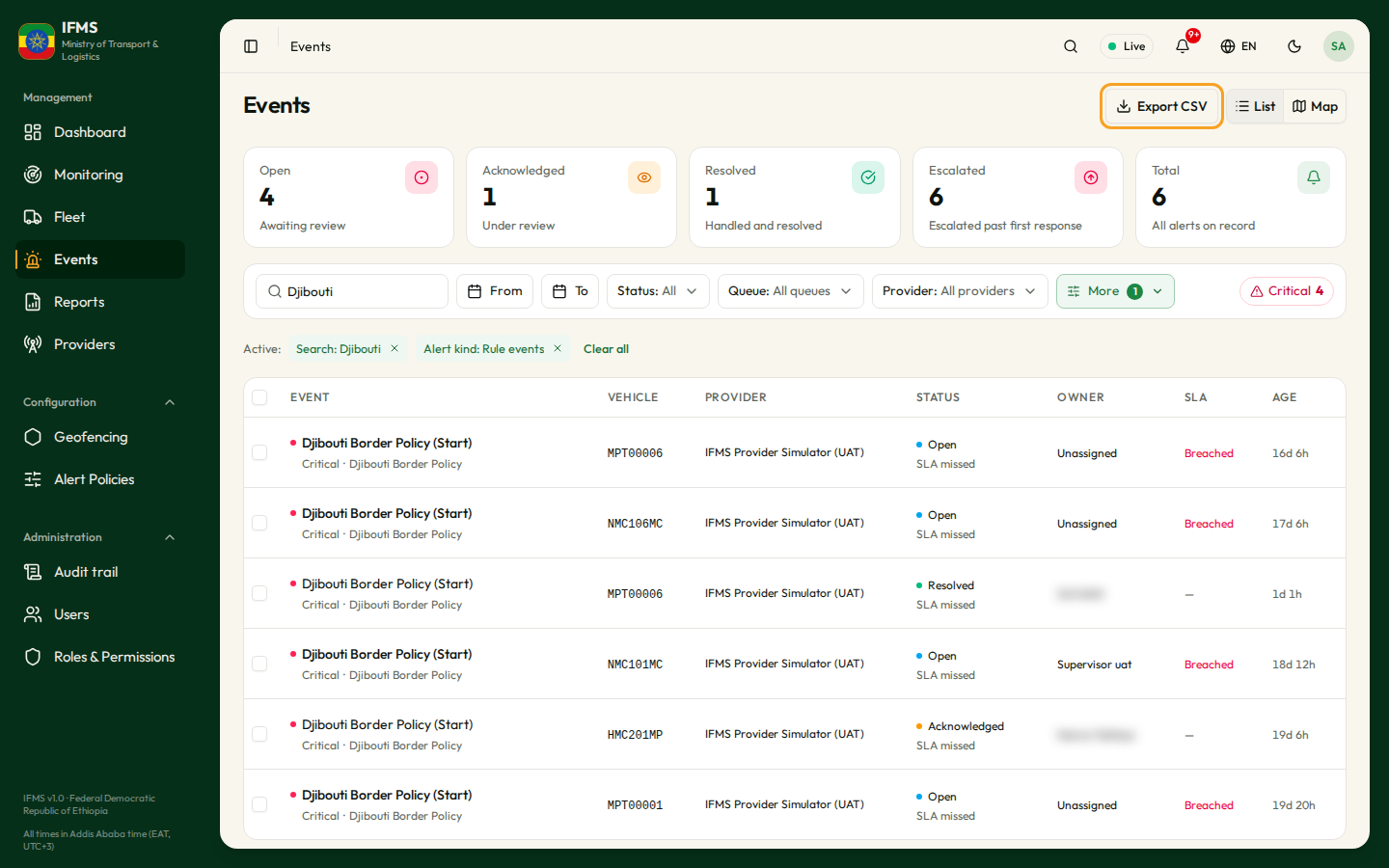
Export CSV saves exactly the rows currently listed, which with the standard setting is ten. It does not save everything that matches your filters. Set Rows per page to 100 before you export, and export each page separately if there are more.
Before you start
- No special permission is needed: if you can see the Events screen, you can export from it.
- Decide what the file should contain first, and set the filters to match. The file contains the rows as you filtered them, so a tidy export starts with a tidy screen.
Steps
-
Open Events from the sidebar, under Management.
-
Set the filters for what you want: for a monthly count of everything, set Alert kind to All alert kinds and leave the rest cleared; for one company's alerts, set Provider; for the late ones, set Escalation to Escalated only.
-
Under the table, set Rows per page to 100.
-
Check the Showing 1–100 of … line. If the total is above 100, you will need one export per page.
-
Make sure you are on the List view. The button is there on the map too, and it still exports the same rows, but you cannot see what you are about to save.
-
Select Export CSV at the top right of the page.
-
The file downloads straight away, named
ifms-events-and the date — for exampleifms-events-2026-09-18.csv. A message confirms "Exported 100 events". -
For the next page, use the > arrow under the table and select Export CSV again. Each page produces a file with the same name, so your browser will number them.
Both the file name and the date-and-time columns inside it are written in Coordinated Universal Time, not local time. East Africa Time is three hours ahead, so an alert raised at 09:15 in Addis Ababa appears as 06:15 in the file. Say which you mean when you pass the file on.
What is in the file
Fifteen columns, in this order.
| Column | What it contains |
|---|---|
| At | When the alert was raised, as "18 Sep 2026, 06:15". |
| Severity | Info, Warning or Critical — the three-level badge from the screen, not the five-level policy setting. |
| Event | The kind of event: Speeding, Geozone entry, Geozone exit, Excessive idling, Ignition state, Legality violation or Integration health. |
| Status | Open, Acknowledged or Closed. |
| Message | The alert's message. For a rule event this is the policy's name followed by "(Start)" or "(End)". |
| Vehicle | The plate. |
| Provider | The GPS company's name, or its code, or blank. |
| Geozone | The name of the area the policy watches, or blank. |
| Acknowledged by | An internal reference for the person, not their name. See the caution below. |
| Acknowledged at | When it was acknowledged, or blank. |
| Escalation level | 1 for an escalated alert, blank otherwise. |
| Escalated at | When IFMS escalated it, or blank. |
| Closed by | An internal reference for the person, not their name. |
| Closed at | When it was closed, or blank. |
| Resolution note | The note typed when the alert was closed. |
- "Acknowledged by" and "Closed by" are internal references, long strings of letters, digits and dashes, rather than the names shown on screen. To find out who handled an alert, open the alert and read its handling timeline; the timeline shows the name. Names cannot be got out of the export.
- The acknowledgement note is not exported. Only the resolution note is. If the investigation trail matters for a report, make sure the important detail goes into the note you type when you close the alert.
If something goes wrong
| What you see | What it means | What to do |
|---|---|---|
| "No events to export" and no file | The page in front of you has no rows. | Clear the filters until the table has rows, then export again. |
| The file has only ten rows | Rows per page was left at 10. | Set it to 100 and export again. |
| The file has fewer rows than you expect | The export covers one page. | Check Showing … under the table; export each page in turn. |
| Nothing downloads | Your browser is blocking the download. | Allow downloads from the portal in your browser's settings and try again. |
| The file opens as one long column | Your spreadsheet program did not split the columns. | Open it with the program's text-import option and choose the comma as the separator. |