Inbox
The Inbox is your own list of the alerts and system messages IFMS has delivered to you in the portal. The bell in the header is the short version of the same list; the Inbox is the full one, with tabs and an archive.
Reading a message here changes nothing about the alert itself. Marking a notification read does not acknowledge the alert, and archiving it does not close anything. Those are done on Events.
Every signed-in person has an Inbox and receives in-app notifications automatically. The rules an administrator sets under Alert Routing decide who is additionally emailed or texted - they do not decide who sees messages here. The screen's own wording, "Alerts and system messages routed to you", can give the wrong impression.
Who can see this screen
Everyone. There is no permission on the Inbox.
Opening a message is a different matter: most messages lead to Events, which needs permission to see alerts. Without it you can read a notification but will get "Access denied" when you open it.
How to open it
- Select the bell in the header, towards the top right.
- At the bottom of the panel that opens, select View all.
The bell is the only way in, and while you are on the Inbox no sidebar item is highlighted.
The notifications bell
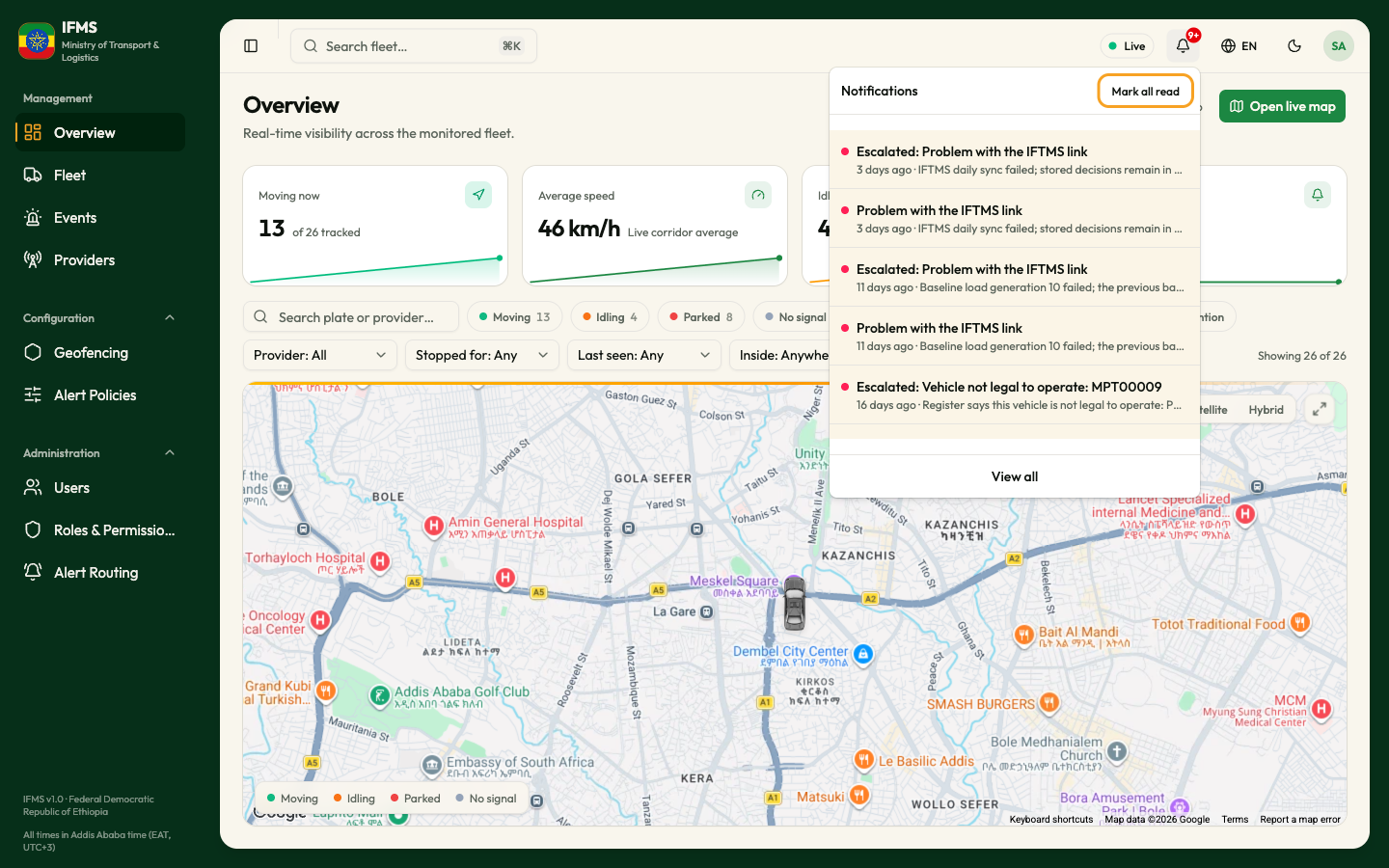
The bell carries a red count of your unread messages, showing 9+ once
there are more than nine. The count is re-checked about once a minute.
When there is nothing to show, the panel reads "No notifications yet" - as in the picture above, which was taken on a test system.
The red count and the list of messages are fetched separately, and nothing on
screen reports a failure. If the list cannot be loaded you get "No
notifications yet" while the bell still shows a count - the picture above is
exactly that case, a bell reading 9+ above an empty panel. Treat a
contradiction like this as "the messages could not be fetched", not as "there
are none", and check Events for the alerts themselves.
Selecting the bell opens a panel holding your twenty most recent messages, read and unread together. Each line has:
- A coloured dot for how urgent the message is: red for high, blue for normal, grey for low.
- The title, which is bold and on a tinted row while the message is unread.
- Underneath, the first line of the message. If a message has no text of its own, you get the time it arrived instead.
Mark all read at the top of the panel clears every unread message at once. It is greyed out when you have nothing unread, and it gives no confirmation - the red count simply disappears.
View all at the bottom opens the Inbox.
Selecting any message marks it read, closes the panel and takes you to what the message is about - for an alert, that is the alert's own details on the Events screen.
The Inbox screen
The heading is Inbox, and Mark all read sits at the top right. Unlike the bell, the Inbox confirms the action with the message "All notifications marked as read". The button is greyed out when nothing is unread.
Messages are grouped by the day they arrived, under small headings: Today,
Yesterday, and then the date itself, such as 12 Jul 2026.
What each row shows
- An icon tile - a siren for an alert, a bell for anything else - tinted red, blue or grey for high, normal or low urgency.
- A dot before the title while the message is unread. Unread rows are also bold and faintly shaded.
- The message text, up to two lines.
- How long ago it arrived.
The four tabs
| Tab | What it lists |
|---|---|
| All | Everything that has not been archived, newest first. |
| Unread | Only messages you have not opened. The tab carries a count, capped at 99+. |
| Read | Messages you have already opened. |
| Archived | Messages you have tucked away. |
Switching tabs always takes you back to the first page.
Opening a message
Select the row. IFMS marks it read - silently, with no confirmation - and takes you to what it is about: an alert opens on Events with its details already showing.
The buttons on each row
Rest the pointer on a row (on a phone they are always visible) and up to three buttons appear at its right:
| Button | When it appears | What it does |
|---|---|---|
| Mark read | Only while the message is unread | Marks it read where it is, without opening it. No confirmation appears. |
| Open | Always | The same as selecting the row. |
| Archive | Always | Moves the message to the Archived tab and confirms with "Notification archived". |
There is no un-archive and no delete. Archived messages stay on the Archived tab, and the Archive button is still offered there even though pressing it again achieves nothing. Archive only what you have finished with - and remember the alert itself is untouched either way, so nothing is lost from Events.
You cannot filter the Inbox by urgency or by the kind of message; the four tabs are the only sorting there is.
How many rows you see
The footer shows Rows per page, set to 10, and Showing 1–10 of N, with arrows to move between pages. You can change it to 20, 50 or 100. The footer is hidden when the tab is empty.
If reading the last message on a page empties it, the Inbox moves you back a page on its own.
When a tab is empty
| Tab | What you see |
|---|---|
| All | "You're all caught up" - "Alerts routed to you will appear here." |
| Unread | "Nothing unread" - "You've read everything routed to you." |
| Read | "Nothing read yet" - "Notifications you open will collect here." |
| Archived | "No archived notifications" - "Archive an item to tuck it away here." |
If the service that delivers notifications cannot be reached, IFMS does not say so. You get one of these instead, and both look like good news:
- "You're all caught up", exactly as if you genuinely had no messages.
- The placeholder rows that appear while the list loads, sitting there and never turning into messages.
The bell's count is fetched separately and may still show a number through all of this, so a count above an empty list means the messages could not be fetched - not that there are none.
If you are expecting alerts, check Events, which reads from a different source. See also Troubleshooting.
Where to go next
- Events - where alerts are acknowledged and closed.
- Alert Routing - who gets emailed and texted in addition to this list.
- Find your way around - the rest of the header.