Alert routing
Every alert IFMS raises already appears in the Inbox of every colleague who has an account — that needs no setting up, and it cannot be switched off. An alert routing rule adds a second way of reaching people: email and SMS (text message) for everybody who holds one chosen role.
Use a rule when an alert must not wait until somebody looks at the screen: the critical ones at night, or geofence alerts that a particular team follows.
Who can open this screen
System admin, Operational manager and Supervisor, who can also add, change and remove rules. Nobody else has the item in their sidebar. See What each role can do.
How to open it
- In the sidebar, open the Administration group.
- Select Alert Routing.
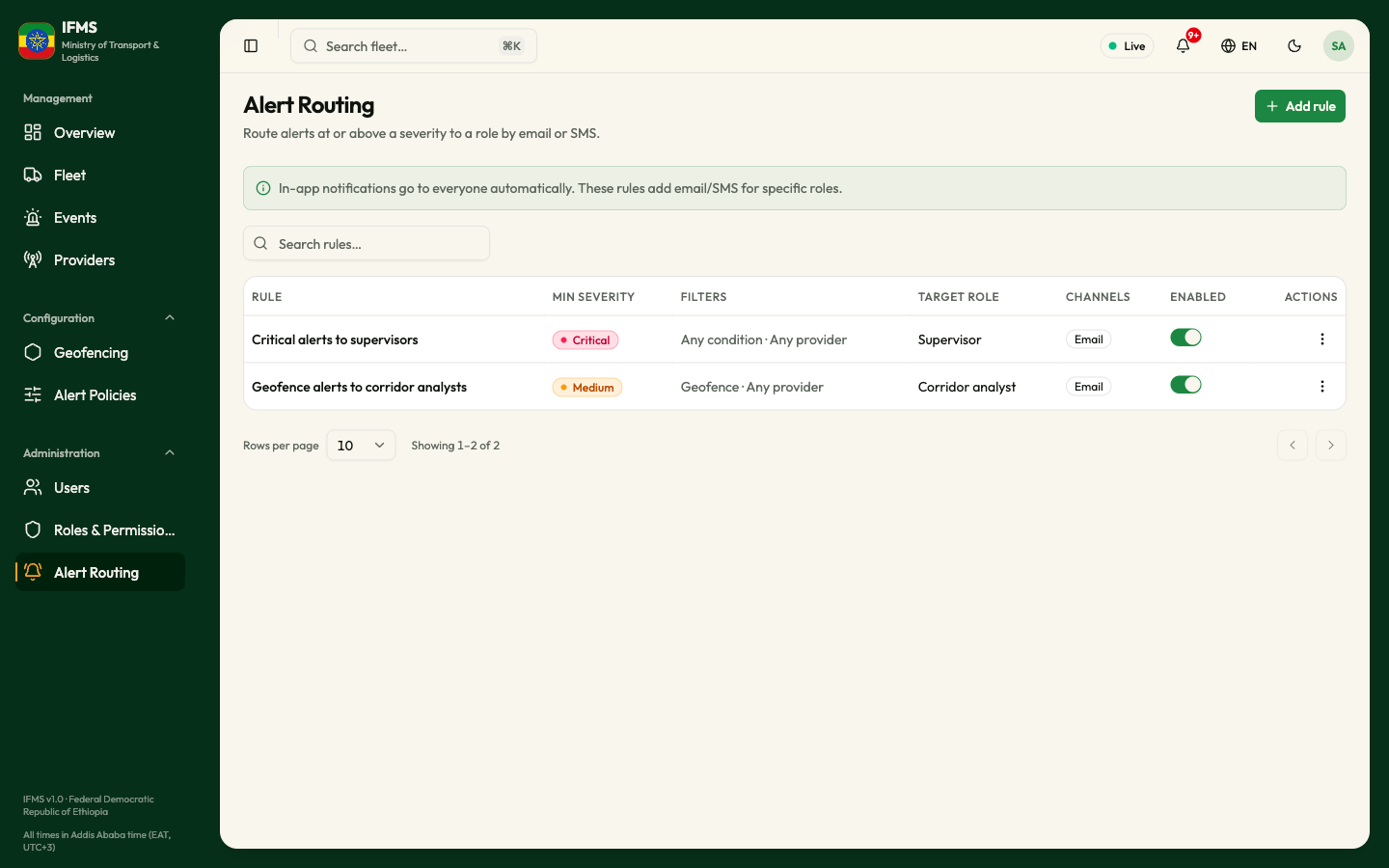
The screen's own description reads "Route alerts at or above a severity to a role by email or SMS." The teal band above the table repeats the point: "In-app notifications go to everyone automatically. These rules add email/SMS for specific roles."
The table
Search rules… narrows the list by rule name, role or provider.
| Column | What it shows |
|---|---|
| RULE | The rule's name, or "Untitled rule" when it was saved without one. |
| MIN SEVERITY | The lowest severity the rule reacts to: Info, Low, Medium, High or Critical. Everything at that level and above is sent. |
| FILTERS | Two conditions separated by a dot: the alert type (Speeding, Geofence, Ignition, Idle / distance or Any condition) and the tracking company (Any provider, or the company's name). |
| TARGET ROLE | The name of the role whose holders are written to. |
| CHANNELS | Email, SMS, or both. |
| ENABLED | A switch. Green and to the right means the rule is working; grey and to the left means it is kept but sends nothing. If you may not change rules, a ✓ or a dash (—) shows instead. |
| ACTIONS | The three-dot button (Open actions) with Edit and Delete. Missing if you may neither change nor delete rules. |
Below the table: Rows per page, the count and the page arrows. When there are no rules at all the table reads "No routing rules yet" / "Add a rule to send email/SMS for alerts. In-app delivery already works for everyone."
Selecting a row anywhere except the switch or the three-dot button opens Edit routing rule. If you may not change rules, it opens View routing rule instead — "This rule's filters and who it notifies." — where nothing can be changed; select Close when you are done.
Switch a rule on or off
- Select the Enabled switch on the rule's row.
- Read the question. Switching on asks "Turn on this rule?" — "'name' will start sending email/SMS for matching alerts." Switching off asks "Turn off this rule?" — "'name' will stop sending email/SMS for matching alerts."
- Select Turn on or Turn off to go ahead, or Cancel.
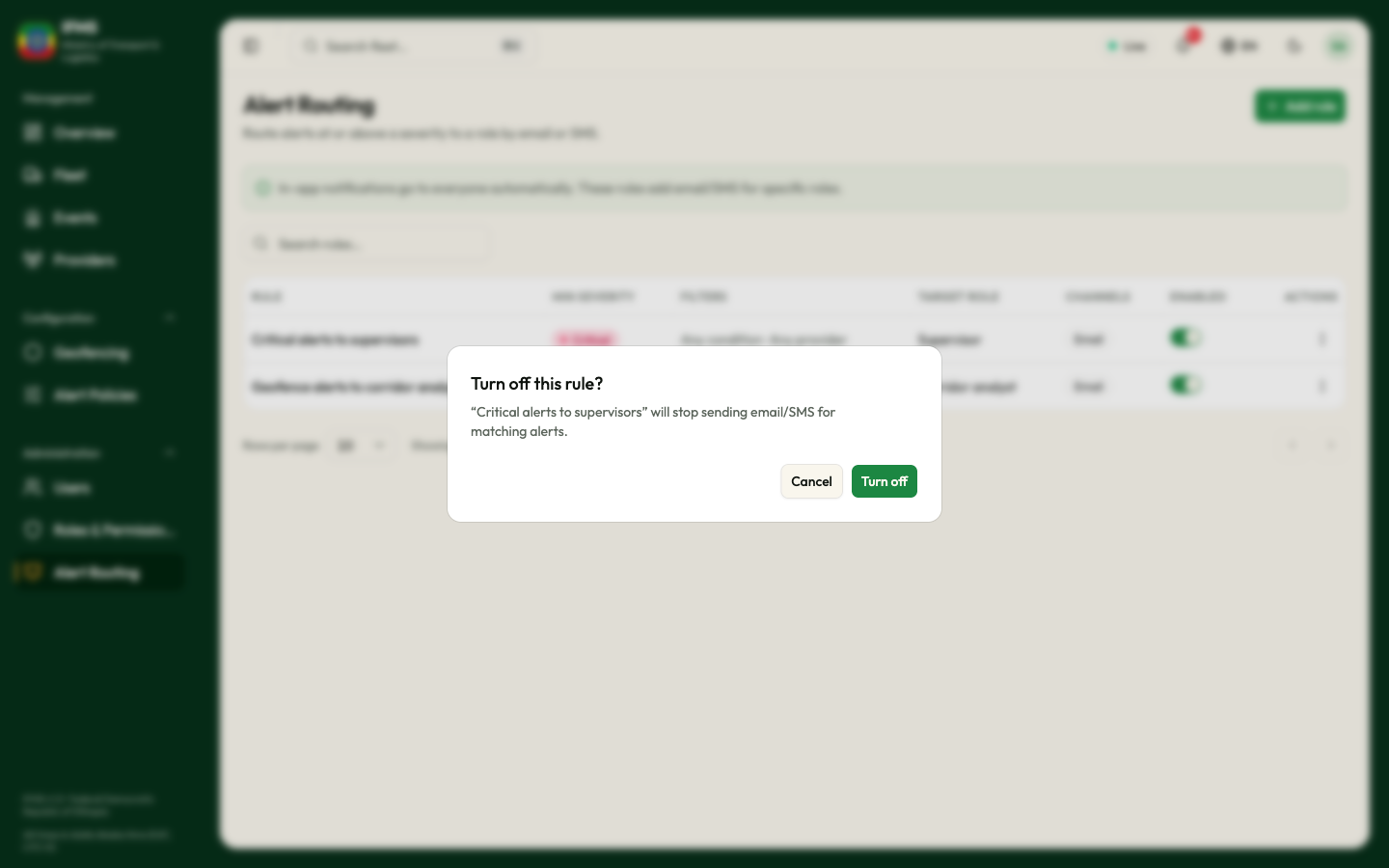
A green "Rule turned on." or "Rule turned off." confirms it. Switching a rule on starts sending email and text messages straight away to everyone holding the target role.
Add a routing rule
You will choose which alerts, and which group of colleagues, and how they are reached.
Before you start
- You need the right to create routing rules (System admin, Operational manager or Supervisor).
- Decide the role that should be written to, and check that those colleagues have an email address — and, for text messages, a Phone number on their account. See Users.
Steps
-
Select Add rule at the top right.
-
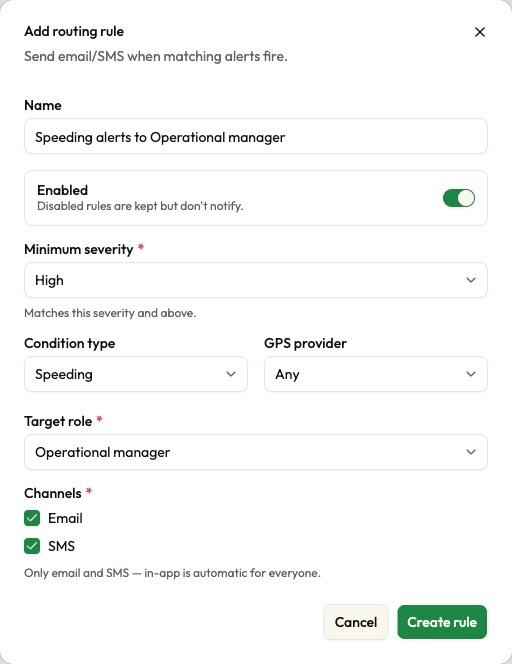
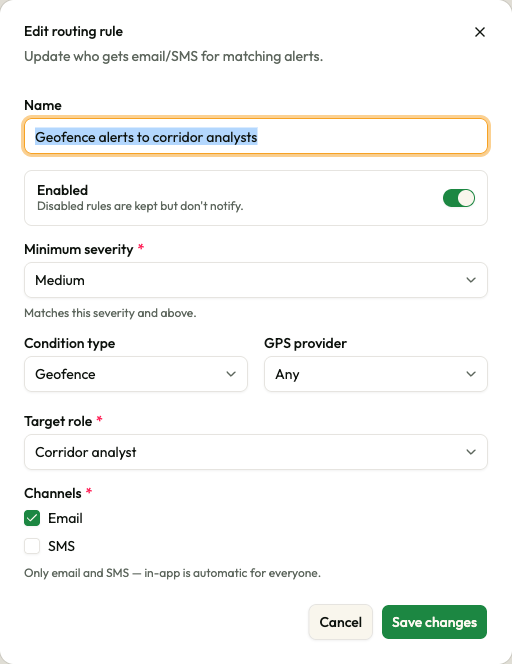
Type a Name that says what the rule does, for example "Speeding alerts to Operational manager". The name is optional, but a rule without one shows as "Untitled rule" and is hard to recognise later.
-
Leave Enabled switched on to start sending straight away, or switch it off to save the rule without using it ("Disabled rules are kept but don't notify.").
-
Choose the Minimum severity. The rule then matches that severity and every more serious one: choosing High sends High and Critical alerts; choosing Info sends everything. The starting value is Medium.
-
Optionally narrow the rule with Condition type — Any, Speeding, Geofence, Ignition or Idle / distance. Any covers every kind of alert.
-
Optionally narrow it with GPS provider — Any, or one tracking company, so that only that company's vehicles set the rule off. Only providers with a name are listed; see Providers.
-
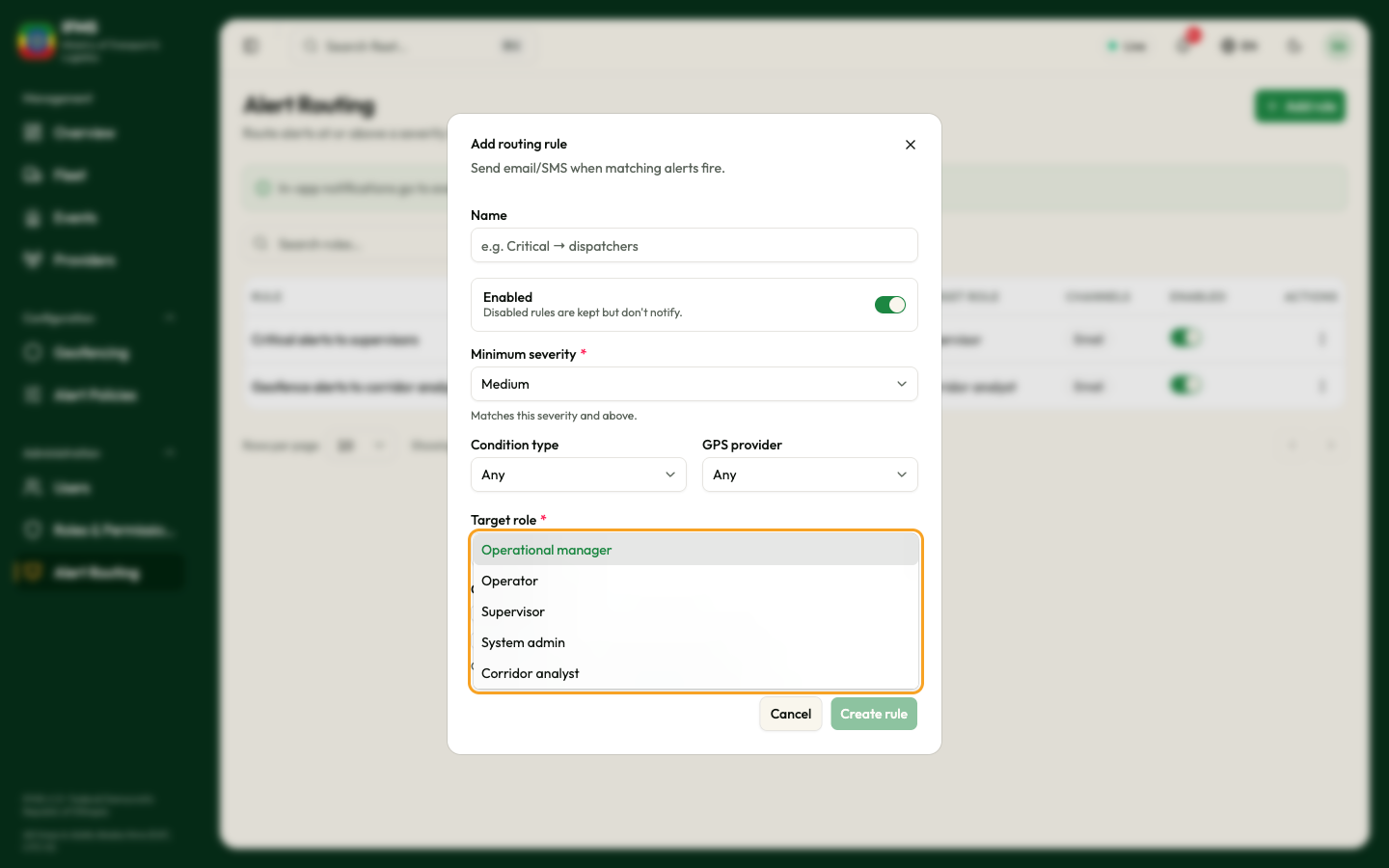
Choose the Target role. Everybody holding that role receives the message. The list shows person roles that are switched on. Machine roles are hidden.
-
Tick at least one of Email and SMS under Channels. In-app delivery is not on offer because everybody already gets it.
-
Select Create rule. The button stays greyed out until a target role is chosen and at least one channel is ticked. A green "Routing rule created" confirms it.
Cancel or ✕ closes the window and saves nothing.
The fields
| Field | Required | What to enter | Rules and messages |
|---|---|---|---|
| Name | No | What the rule is for | Up to 200 characters. Blank shows as "Untitled rule". |
| Enabled | — | On or off | Starts on. A disabled rule sends nothing. |
| Minimum severity | Yes | Info, Low, Medium, High or Critical | Starts at Medium. Matches this severity and above. |
| Condition type | No | Any, Speeding, Geofence, Ignition, Idle / distance | Starts at Any. |
| GPS provider | No | Any, or one named tracking company | Starts at Any. |
| Target role | Yes | The role to write to | One role per rule. Make a second rule for a second role. Switched-off roles are not listed, unless the rule already points at one. |
| Channels | Yes | Email, SMS, or both | At least one must be ticked. |
Edit a routing rule
- Open the row menu and select Edit, or select the row.
- Change anything — every field can be changed, including the target role.
- Select Save changes. A green "Routing rule updated" confirms it.
Delete a routing rule
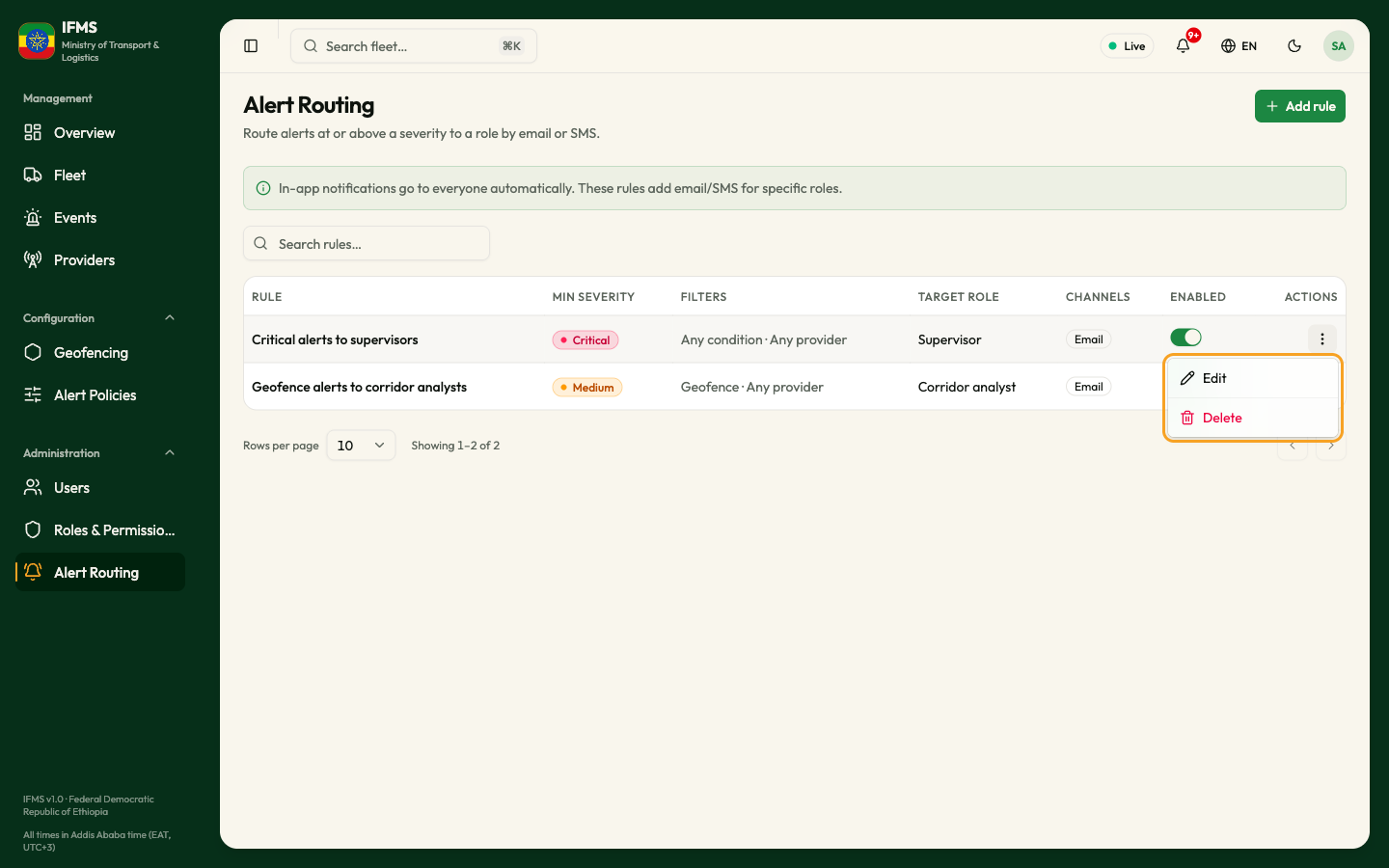
- Open the row menu and select Delete.
- The question reads "Delete routing rule?" — "'name' will stop sending email/SMS. This can't be undone."
- Select the red Delete, or Cancel.
A green "Routing rule deleted" confirms it and the rule disappears from the list. Alerts keep arriving in everybody's Inbox as before. If you may want the rule back, switch it off instead of deleting it.
How delivery actually works
When IFMS raises an alert, two things happen, one after the other.
1. The Inbox — always, for everybody. The alert appears in the Inbox of every colleague with an active account, whatever their role. See Inbox.
2. Email and text messages — only through these rules. IFMS looks at every enabled rule. A rule matches when all three of these are true:
- the alert is at the rule's minimum severity or above;
- the rule's condition type is Any, or it is exactly the kind of alert that was raised;
- the rule's GPS provider is Any, or it is the company that reported the vehicle.
For each matching rule, every active colleague holding the target role is written to on the ticked channels:
- Email goes to the address on their account.
- SMS goes to the number in their Phone field.
Useful things to know:
- Somebody covered by two matching rules is written to once per channel, not twice.
- Somebody with no email address, or no phone number, is simply skipped for that channel. Nothing warns you.
- Inactive colleagues are not written to.
- The email arrives with the alert's title as its subject; the text message reads "Integrated Fleet Management System alert: title — details".
Text messages go to the Phone field only. If a colleague should receive them, put the number they carry in Phone, not in Alternative phone.
The portal shows no record of what was sent, to whom, or whether it arrived. If a rule seems not to work, check in this order: the Enabled switch, the minimum severity against the severity of the alert, the condition and provider filters, and finally the email addresses and phone numbers of the people holding the target role.
A pattern to start from
Two rules cover most needs:
- Critical alerts to supervisors — minimum severity Critical, condition Any, provider Any, target role Supervisor, channel Email (add SMS if supervisors must be reached away from a screen).
- Geofence alerts to the corridor team — minimum severity High, condition Geofence, target role the team's role, channels Email and SMS.
Start with a high minimum severity. Lowering it later is easy; a rule set to Info writes to people for every single alert and quickly becomes noise they ignore.
Related pages
- Users — email addresses and phone numbers live on the account.
- Roles and permissions — who holds the role a rule writes to.
- Events — the alerts themselves, and what severity means.
- Inbox — in-app delivery, which needs no rule.