Alert Policies
An alert policy is a rule. It says what to watch for — a vehicle inside an area, a speed over a limit, an engine left idling — which vehicles it applies to and how serious a match is. Whenever a vehicle's tracker reports a position, IFMS checks every switched-on policy against it, and raises an alert when a policy starts or stops matching.
This screen is the list of those rules. It describes itself as "Alerting policies evaluated against the live fleet — each raises alerts when its conditions match."
This screen holds the rules. The alerts they raise appear on Events, under Management. Writing a policy raises nothing by itself; switching one on starts it watching. See Key concepts.
Who can see this screen
Anyone whose role allows them to read policies — Operator, Supervisor, Operational manager and System admin — can see the list.
Writing them is narrower. Creating, editing, deleting, switching on and off and managing target vehicles are for Supervisor, Operational manager and System admin only. Operator have a read-only view: no New policy button, no Active switch and no waste-basket on any row.
If your role does not allow even reading them, the Alert Policies item is missing from the sidebar, and opening the address directly shows "Access denied" with a Back to overview button. See What each role can do.
Rows look selectable to everybody, but selecting one opens the edit screen, which needs the right to change a policy. An operator who selects a row lands on "Access denied". There is no read-only detail view of a policy: everything an operator can learn about a rule is in the table on this screen.
How to open it
- In the sidebar, open the Configuration group.
- Select Alert Policies (the sliders icon).
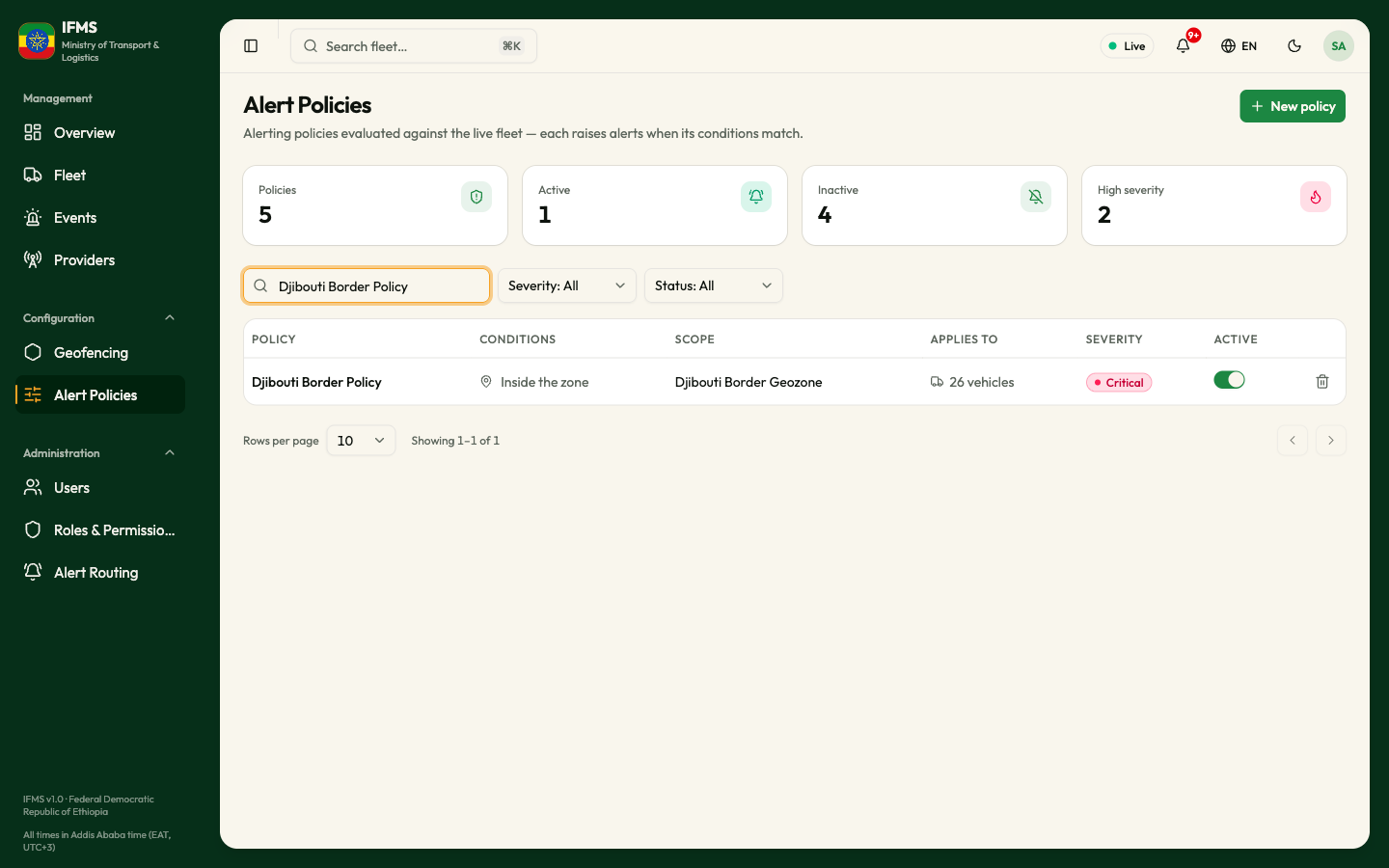
The screen has four regions:
- the page title and description, with New policy on the right;
- four count cards;
- the toolbar: a search box and the Severity and Status filters;
- the table of policies, with the rows-per-page selector and page arrows underneath.
The count cards
The cards count every policy, whatever the search box and filters are set to. They have no explanatory line under the number.
| Card | What it counts |
|---|---|
| Policies | Every policy that exists. |
| Active | Policies that are switched on and being checked against live positions. |
| Inactive | Policies that are switched off. Together with Active this adds up to Policies. |
| High severity | Policies set to High or Critical — the ones whose alerts carry the shortest response windows. |
The cards update after you create, change, delete or switch a policy.
Searching and filtering
Both filters and the search are applied by IFMS itself, and any change takes you back to page one.
Search policies… matches the policy's name only. It does not look at conditions, geozones or providers.
Severity
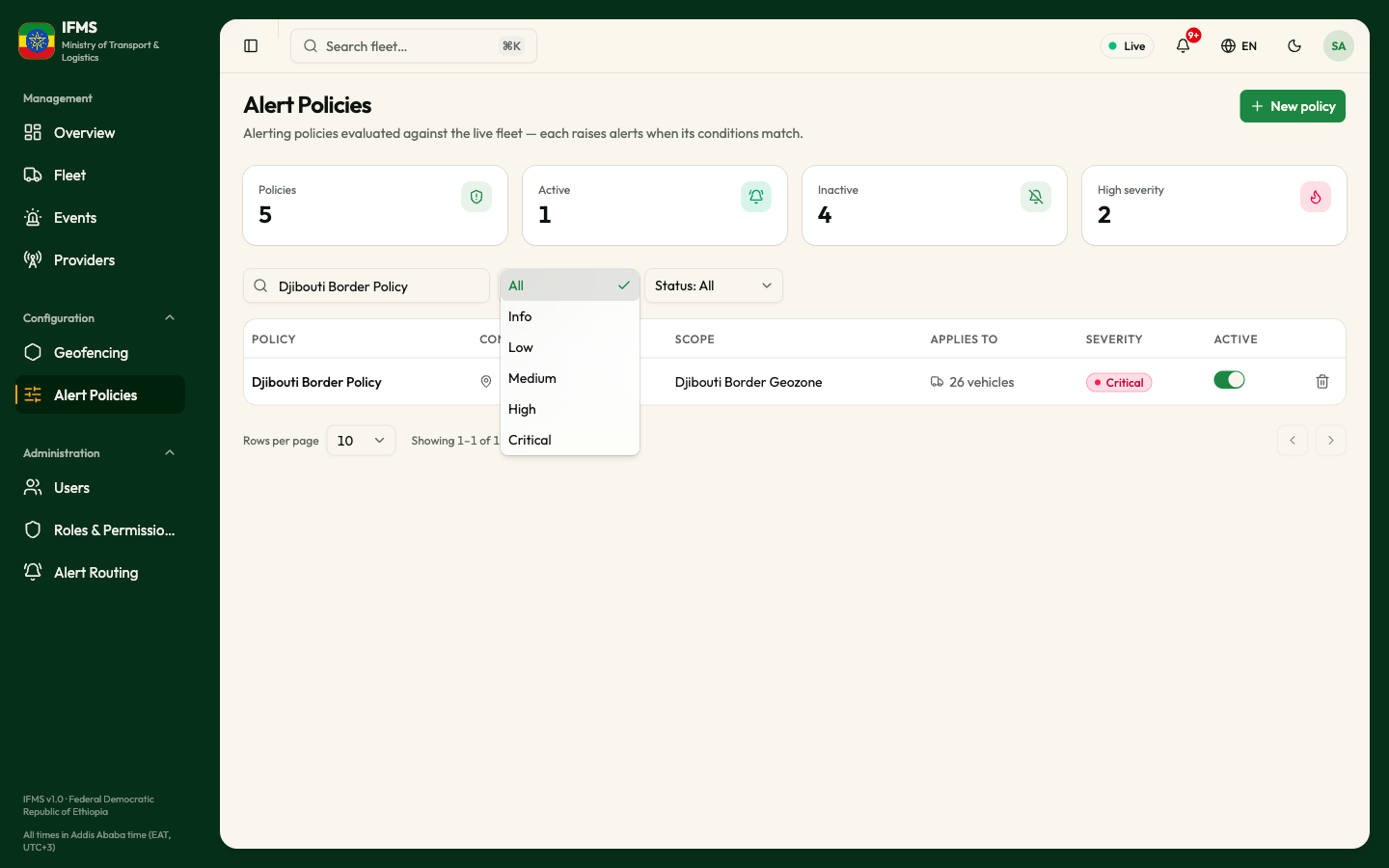
The Severity filter reads Severity: All until you choose something, then Severity: High and so on. The options are All, Info, Low, Medium, High and Critical.
A policy whose severity was left as Unset shows "—" in the SEVERITY column and is not returned by any of the five named options. Choose All to see it.
Status
The Status filter reads Status: All, Status: Active or Status: Inactive, with those same three options. It matches the ACTIVE switch on each row.
The table
Column headings are shown in capitals.
| Column | What it shows |
|---|---|
| POLICY | The policy's name. A long name is cut short with "…". |
| CONDITIONS | One small icon per kind of condition — a pin for geofence, a dial for speed, a power symbol for ignition, a timer for idling — followed by a summary of each condition. The summaries are joined by and when every condition must match, or by or when any one of them is enough. "—" when the policy has no conditions. |
| SCOPE | The name of the geozone the policy watches, or "—" when it does not watch one. |
| APPLIES TO | All vehicles, Provider: <name>, or a count such as 12 vehicles. |
| SEVERITY | Info (sky blue), Low (emerald), Medium (amber), High (orange) or Critical (rose). "—" when unset. |
| ACTIVE | The on/off switch. Absent altogether for roles that cannot switch policies. |
| (no heading) | The waste-basket button that deletes the policy. Absent for roles that cannot delete. |
Each row carries a left edge in its severity colour, so you can pick the serious policies out of the list at a glance. Policies with no severity have no edge.
Reading the CONDITIONS column
| What it says | What it means |
|---|---|
| Geofence INSIDE | Matches while the vehicle is inside the geozone in SCOPE. |
| Geofence OUTSIDE | Matches while the vehicle is outside that geozone. |
| Speed > 70 km/h | Matches while the vehicle's speed is above 70 km/h. |
| Speed > zone limit | Matches while the vehicle is inside the geozone and above the speed limit stored on that zone. |
| Ignition ON / Ignition OFF | Matches while the tracker reports the ignition in that state. |
| Idle ≥ 240 min | Matches once the vehicle has been idling — stationary with the engine on or unknown — for 240 minutes or more. |
INSIDE, OUTSIDE, ON and OFF appear in capitals here, while the screen you set them on says "Inside the zone", "Outside the zone", "On" and "Off". They mean the same thing.
Switching a policy on and off
The ACTIVE switch on each row starts and stops the policy immediately. Selecting it does not open the policy.
- Find the policy's row.
- Select the switch in the ACTIVE column.
The message Policy activated or Policy deactivated confirms it. There is no confirmation question — one selection is enough, in either direction.
IFMS decides whether to raise an alert by comparing each new position report with the previous one for that vehicle. The first report a policy sees for a vehicle counts as "was not matching", so every vehicle that already matches raises an alert at once.
A policy that watches for vehicles outside a small zone therefore alerts on very nearly the whole fleet the moment you switch it on. Switch new policies on when somebody is watching the Events screen, and scope them to a provider or a handful of vehicles while you are testing.
Switching a policy off stops it raising anything new. Alerts it has already raised stay in the queue, in whatever state they are in, and still have to be closed.
Deleting a policy
- Find the policy's row.
- Select the waste-basket button at the end of it.
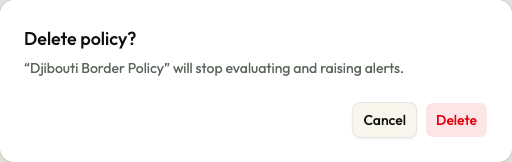
- The question Delete policy? appears, with the line "<name> will stop evaluating and raising alerts."
- Select Delete to go ahead, or Cancel to leave it alone.
The message Policy deleted confirms it and the policy leaves the list.
The alerts a deleted policy already raised stay on the Events screen in their current state, and somebody still has to close them. Their messages still carry the deleted policy's name, which is the only remaining record of it.
If you only want a rule to stop for a while, switch it off rather than deleting it. Deletion cannot be undone from the portal.
Writing and changing policies
- New policy, at the top right, opens the wizard. See Create an alert policy.
- Selecting a row opens the same wizard on that policy, with everything filled in, and the last step reads Save changes instead of Create policy.
Worked examples of complete policies are in Policy recipes.
When the screen is empty, loading or broken
| What you see | What it means | What to do |
|---|---|---|
| Grey placeholder rows | The list is still loading. | Wait a moment. |
| "No policies yet" / "Create a policy to start raising alerts." | Nothing matches. | See the caution below. |
| A red message in the corner of the screen | A request failed. | Reload the screen; if it keeps failing, tell your administrator. |
The same message appears whether the system really has no policies or your search and filters simply matched none of them. Before believing it, clear Search policies… and set Severity and Status back to All.
Moving through the pages
Under the table: Rows per page (10 by default, then 20, 50 or 100), Showing 1–10 of …, and the < and > arrows. The footer disappears when nothing matches.
Tips
- Give policies names that read well in an alert queue. The alert's message is the policy's name followed by "(Start)" or "(End)", so "Galafi border crossing entry" produces a message an operator can act on, while "Test 3" does not.
- Keep the Inactive count low. A long list of switched-off policies nobody remembers the purpose of is how unwanted alert bursts happen later.
- Severity: Critical plus Status: Active is the list to review first when the command centre is drowning in alerts. Those are the policies with a five-minute response window.
- The High severity card counts the policies whose alerts will be escalated quickest. Check it against your alert routing rules so that the right people are actually written to.