Provider details
A provider's page brings together everything IFMS knows about one tracking company: whether it is active, how many legal vehicles it reports, how fresh its data is, the alerts its vehicles have raised, and the full list of its vehicles.
The page only shows information. A provider's name and details come from its connection to IFMS, and nothing about a provider can be changed in the portal.
How to open it
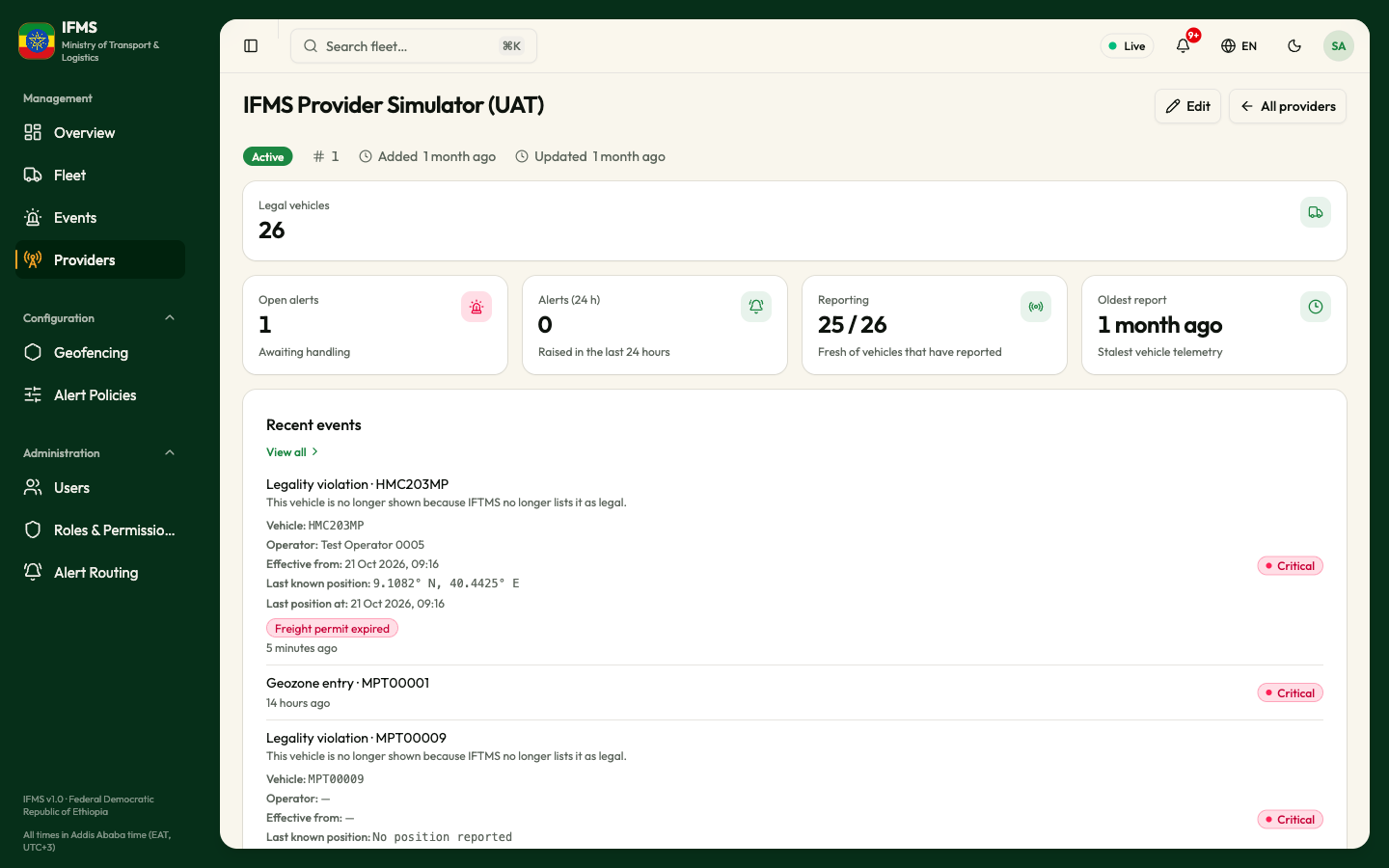
- In the sidebar, under Management, select Providers.
- Select the provider's row.
All providers at the top right takes you back to the list.
The line under the title
Under the provider's name you will find, from left to right:
- the Active or Inactive badge, and the Unnamed badge for a provider that has not sent a name yet (see Unnamed providers);
- Copy provider code, which copies the provider's code so you can paste it to support. A green "Provider code copied" confirms it. The code itself is not shown;
- the provider's number in IFMS, after a #;
- Added, with how long ago the provider first sent data;
- Updated, with how long ago its record last changed.
Vehicle count

The vehicle count includes only this provider's legal vehicles. IFMS does not show separate verified, unverified or not-found counts.
Reporting cards
These four cards appear when IFMS has a health record for the provider.

| Card | What it shows | Line underneath |
|---|---|---|
| Open alerts | Alerts on this provider's vehicles that nobody has picked up yet. Red when above zero. | "Awaiting handling" |
| Alerts (24 h) | Alerts raised on its vehicles in the last 24 hours, whatever state they are in now. | "Raised in the last 24 hours" |
| Reporting | Two numbers: how many of the provider's vehicles reported in the last 15 minutes, out of how many have ever reported. "25 / 30" means 25 of 30 are current. | "Fresh of vehicles that have reported" |
| Oldest report | How long ago the stalest of those vehicles last reported. | "Stalest vehicle telemetry" |
Reporting is the quickest health check on a provider: if the first number is far below the second, most of its fleet has gone quiet.
Recent events
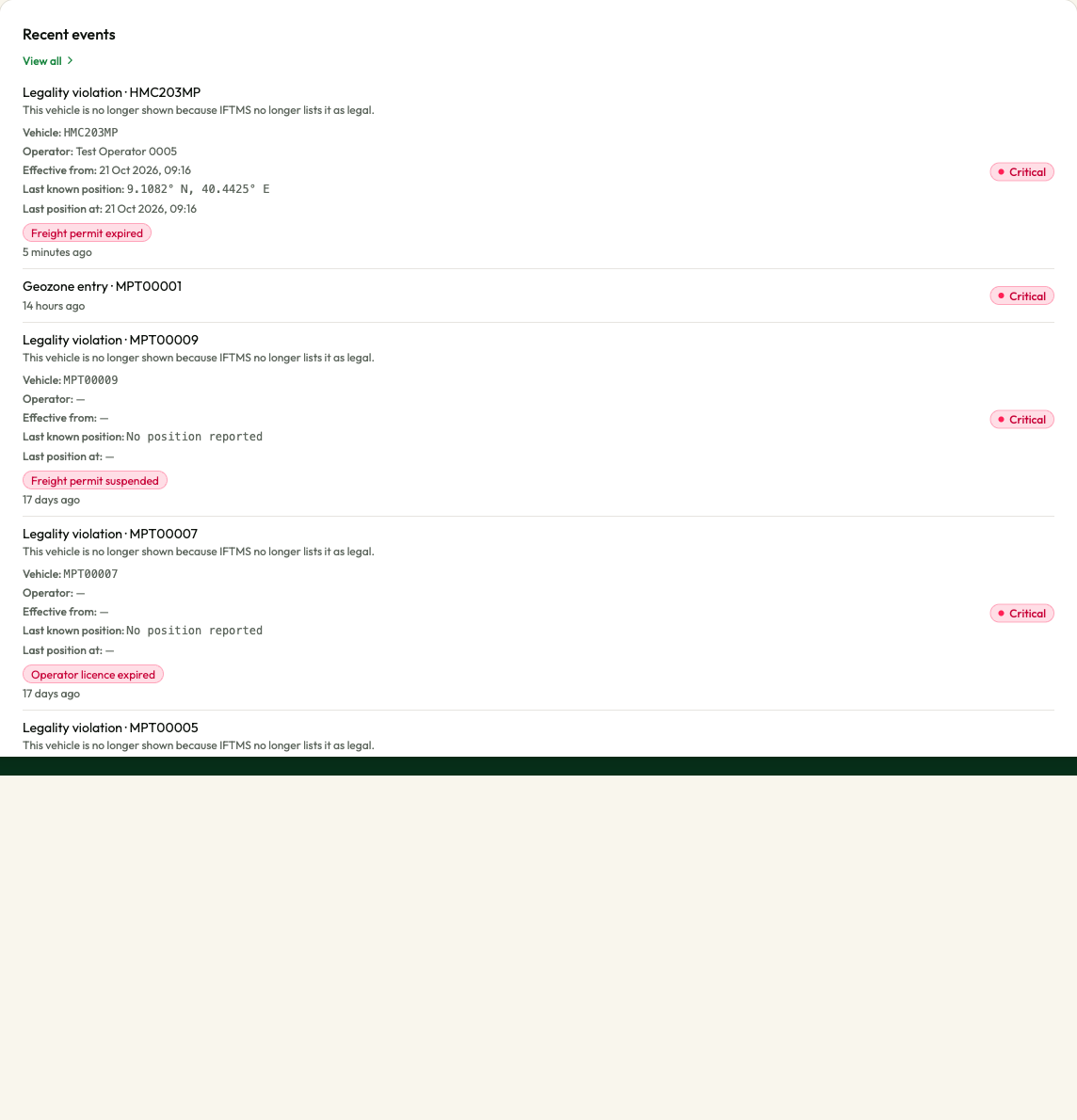
Up to six of the provider's most recent alerts, newest first. Each line shows the kind of alert and the plate it concerns, with how long ago it was raised underneath and its severity on the right.
- View all opens the Events screen filtered to this provider.
- When there is nothing to show, the card reads "No events recorded for this provider."
The lines here are not selectable; open an alert from the Events screen.
The provider's vehicles

The table lists only this provider's legal vehicles. Search plate… narrows the list. There are no verification or legality filters.
| Column | What it shows |
|---|---|
| PLATE | The plate. A plate is reported by one provider only: see One provider per plate. |
| PROVIDER REF | The provider's own reference for the vehicle, or "—". |
| REGISTRY | The vehicle's catalogue status — Active, Suspended, Retired or Blocked — or "—" when none is known. |
| IFTMS DECISION | Legal. Only legal vehicles are shown. |
| STATUS | The vehicle's live state, or Never reported if it has never sent a position. |
| LAST SEEN | How long ago the vehicle last sent a position, or "—". |
| OPEN ALERTS | How many alerts on the vehicle nobody has handled yet, coloured by the most serious one, or "—". |
- Selecting a row opens the vehicle: Vehicle details.
- The table has its own Rows per page selector and page arrows, starting at 10 rows.
- For badge meanings, see Statuses and colours.
When the page is empty, loading or fails
| What you see | What it means | What to do |
|---|---|---|
| A blank page for a few seconds | The provider is loading. | Wait a moment. |
| "Couldn't load provider" / "The request failed, so nothing about this provider is shown. It has not been removed." | The provider could not be loaded. | Select Try again; if it keeps failing, tell your administrator. |
| "Provider not found" / "The provider you are looking for does not exist." with Back to providers | No provider has that address. | Go back to Providers and open it from the list. |
| "No vehicles" / "This provider has no vehicles in the catalogue." | Nothing matches the search or the filter, or the provider really has no vehicles. | Clear the search box. The provider may have no legal vehicles. |
| "No events recorded for this provider." together with a red message in the corner | The alerts could not be loaded. | Reopen the page; if it persists, tell your administrator. |
This page pulls in alerts and vehicles as well as the provider. If your role does not allow you to see alerts or vehicles, the page still opens, but the events card and the vehicle table look empty rather than telling you why, and selecting a vehicle leads to "Access denied".