Vehicle details
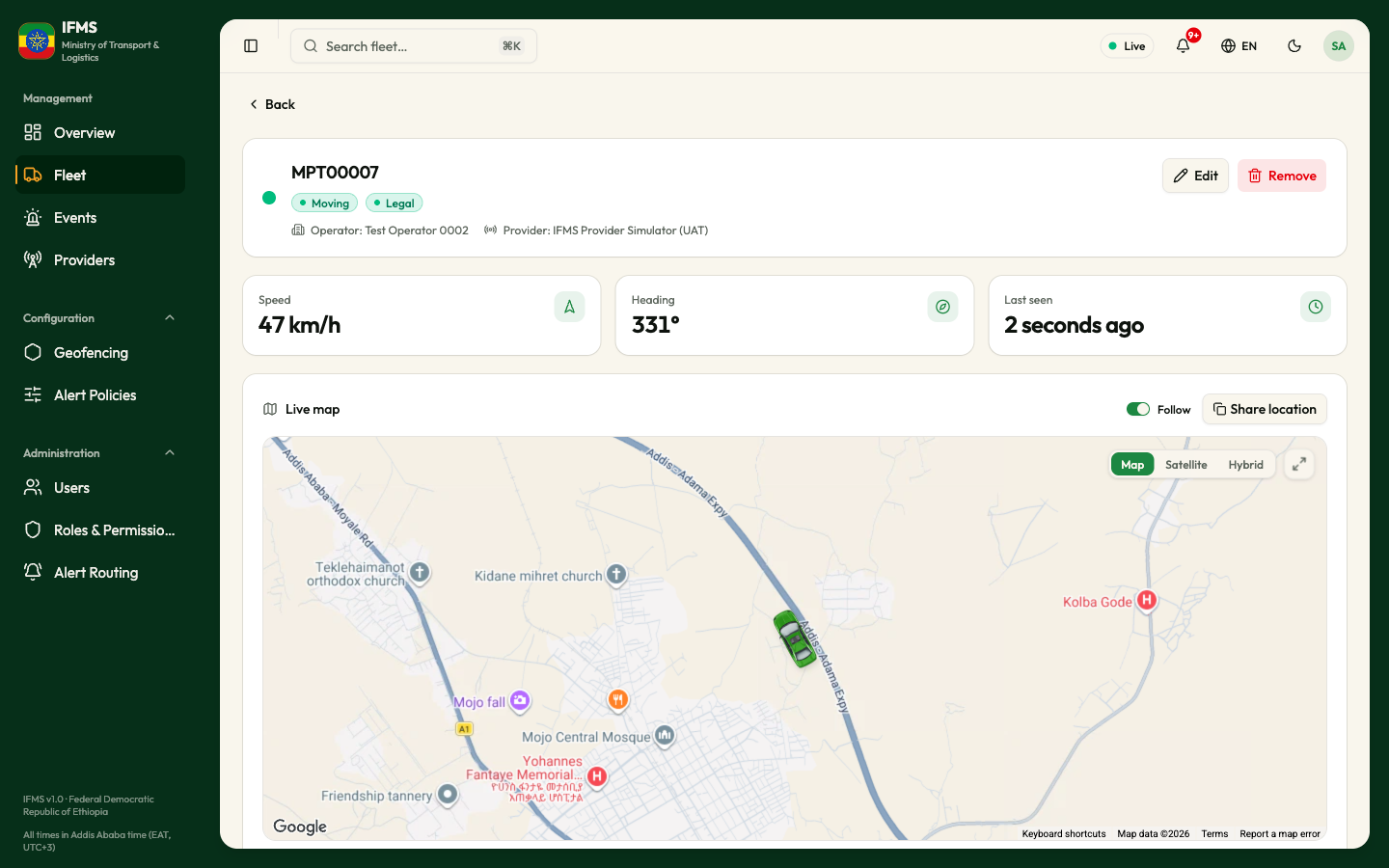
Only legal vehicles can be opened. If a vehicle stops being legal, its page is hidden and returns “Vehicle not found”. Its history is kept. Its legality alert stays in Events without a vehicle link.
The vehicle page is the full record of one vehicle: who reports it, where it is right now, which alerts are open against it, its operator and the registration decision from IFTMS.
The page only shows information. Nobody can add, edit or remove a vehicle in IFMS: vehicles come from the positions providers send and from the IFTMS register. To correct a vehicle's details, correct them in IFTMS.
Who can see this page
Anyone whose role allows them to see vehicles. See What each role can do.
How to open a vehicle
Any of these:
- On Fleet, select a row, then Open full record at the bottom of the quick view. Or select ⋯ at the end of the row and choose Open full record.
- Use the search box at the top of the portal (or press Ctrl K, or ⌘K on a Mac), type a plate and select the vehicle.
- In an alert's detail panel on Events, select the vehicle's link.
- On a provider's page, select a row in its vehicle list: Provider details.
- On the Live map, select a vehicle marker or a row in the map's table.
The page is laid out top to bottom:
- Back;
- the identity header;
- the three live-telemetry cards;
- Live map;
- Live status;
- Registration & compliance;
- Open alerts.
The page refreshes itself about every 15 seconds, so the position and speed stay current while you watch. While you are on it, the sidebar highlights Fleet.
Back returns you to the screen you came from, with your search and filters as you left them. If you opened the vehicle directly, for example from a link someone sent you, the button reads Back to fleet and opens Fleet.
The identity header

| Part | What it shows |
|---|---|
| Coloured dot | The vehicle's movement state, in the same colour as its badge. |
| Plate and description | The plate, then the description. If the vehicle has no description, the make and model are shown instead, and if there is neither, "—". |
| Badges | In order: the movement state, and the registry status of the vehicle if it has one (Active, Suspended, Retired, Blocked). |
| Bottom line | Operator: the transport company responsible for the vehicle, from the IFTMS register, and Provider: the tracking company that reports it. When the register gives no operator, only the provider is shown. |
The header includes the IFTMS decision. The Registration & compliance card shows its details.
The live telemetry cards
Three cards sit under the header.
| Card | What it shows |
|---|---|
| Speed | The current speed, in km/h. |
| Heading | The direction of travel in degrees, where 0° is north. |
| Last seen | How long ago the last position arrived. |
If the vehicle has never reported a position, the three cards are replaced by "No live telemetry reported."
IFMS works the speed out itself from consecutive positions, so it can differ from any speed the provider's device reports. Readings that would mean an impossible jump are thrown away.
Live map
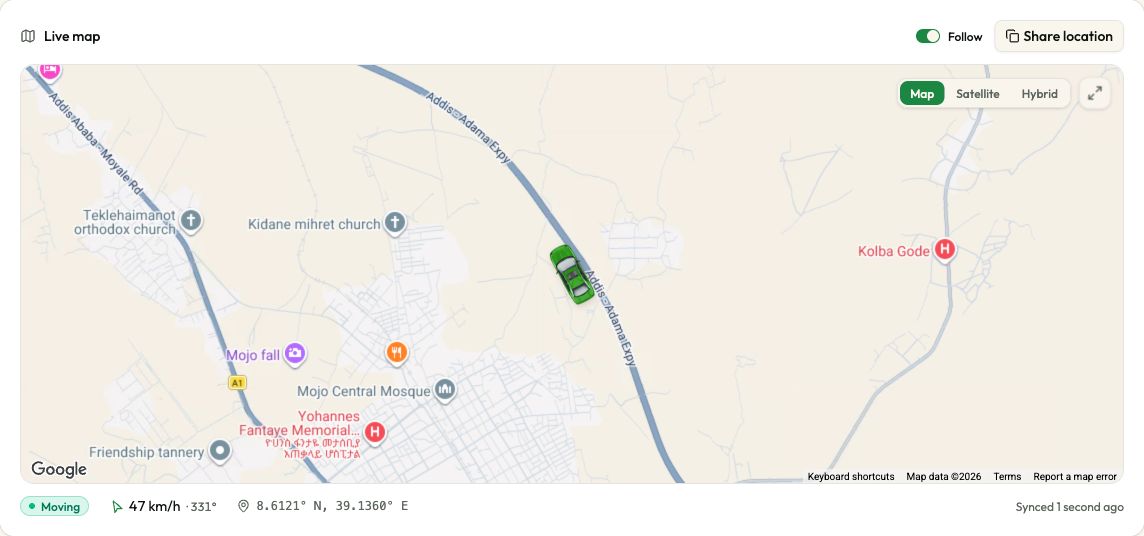
The map centres on the vehicle's last known position.
| Control | What it does |
|---|---|
| Follow switch (on by default) | Keeps the map centred on the vehicle as it moves. Turn it off to pan and zoom freely. |
| Share location | Copies the plate and the coordinates — for example MPT00007 — 8.8035° N, 38.9775° E — to your clipboard, so you can paste them into a message. You will see "Location copied to clipboard", or "Could not copy location" if your browser refuses. |
| Map / Satellite / Hybrid | Switch the background between the street map, aerial imagery and the two combined. |
| The arrows button | Expands the map to fill the window. Press Esc to come back. |
The strip under the map repeats the movement state, the speed and heading, the coordinates, and on the right Synced with how long ago the position arrived.
If the vehicle has never reported a position, the map is replaced by a dashed box reading "No location available.", and Follow and Share location are not shown.
Live status
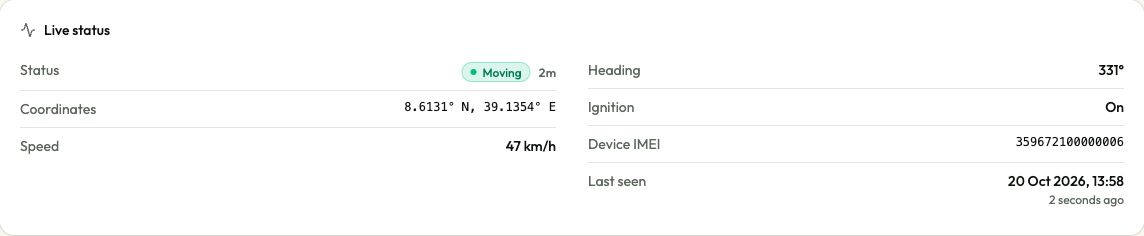
| Field | What it means |
|---|---|
| Status | The movement state, with how long the vehicle has been in it (for example "2h 15m"). |
| Coordinates | Latitude and longitude of the last position. |
| Speed | Speed at the last position. |
| Heading | Direction of travel in degrees. |
| Ignition | On or Off, when the provider reports it; "—" when it does not. |
| Device IMEI | The serial number of the tracking device in the vehicle, as sent by the provider. |
| Last seen | The date and time of the last position, with how long ago that was underneath. |
The movement states. IFMS works these out itself from the positions it receives:
| State | Colour | What it means |
|---|---|---|
| Moving | Green | Travelling faster than 3 km/h, whatever the ignition says. |
| Idling | Orange | Standing still with the ignition on, or with the ignition not reported. |
| Parked | Red | Standing still with the ignition off. |
| No signal | Grey | No fresh position for more than 10 minutes. |
| Unknown | Pale grey | The portal received a state it does not recognise. |
If the vehicle has never reported, this card shows "No live telemetry reported."
Registration
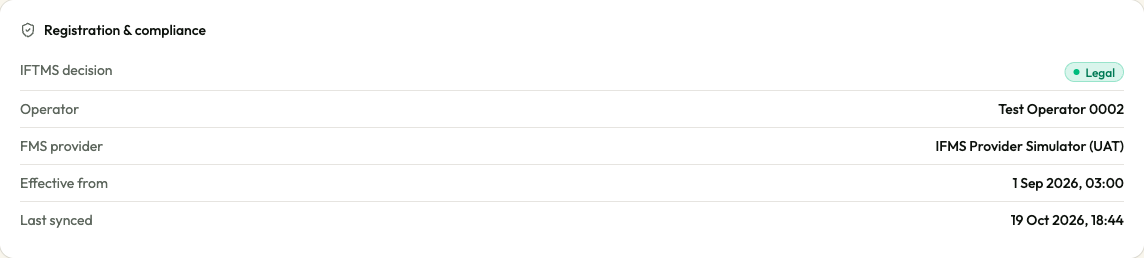
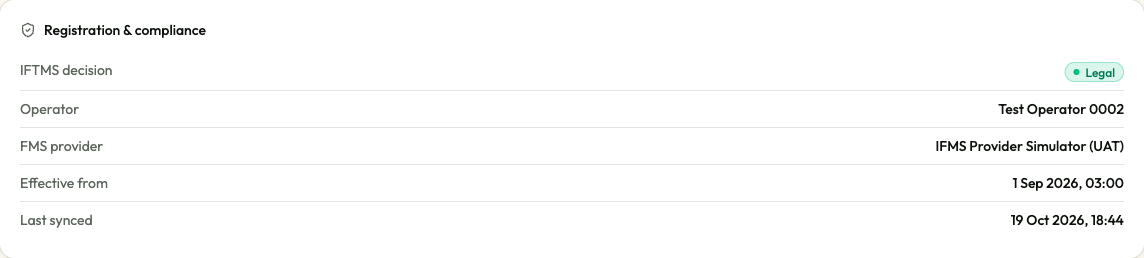
This card shows what IFTMS, the Ministry's freight register, holds about the plate.
| Field | What it means |
|---|---|
| IFTMS decision | Legal. Only legal vehicles have a visible page. |
| Operator | The transport company that is legally responsible for the vehicle, as registered in IFTMS. |
| FMS provider | The tracking company IFTMS has on record for the vehicle. |
| Effective from | When the IFTMS decision took effect. |
| Last synced | When IFMS last received this record from IFTMS. |
The operator comes from IFTMS. If IFTMS supplies no operator name, the value is empty. A vehicle that stops being legal is hidden; use its legality alert in Events to read the operator and reasons.
Open alerts

This card lists up to ten of the vehicle's alerts that are not yet resolved. When there are none, it reads "Nothing open on this vehicle."
To see all of them, or to act on one, select Open in Events at the top right of the card. Events opens showing only this vehicle's unresolved alerts.
One provider per plate
A plate is reported by one tracking provider only. The first provider to send positions for a plate holds it, and IFMS refuses positions for that plate from any other provider. The refused positions are not stored, so the vehicle never appears twice in the fleet.
The hold ends when either of these happens:
- IFTMS records a change of operator for the vehicle, or removes it;
- the holding provider sends no positions for the plate for 30 days.
The next provider to send positions for the plate then holds it. If a vehicle has moved to another provider before then, ask the Ministry of Transport and Logistics to correct the vehicle's record in IFTMS. Nothing in the portal changes who holds a plate.
When the page is loading or fails
| What you see | What it means | What to do |
|---|---|---|
| Grey placeholder blocks | The vehicle is loading. | Wait a moment. |
| "Couldn't load vehicle" / "The request failed, so nothing about this vehicle is shown. It has not been removed." with Try again | The request failed. | Select Try again. If it keeps failing, quote the reference shown in the message to support. |
| "Vehicle not found" / "This vehicle may have been removed from the fleet." with Back to fleet | The vehicle is no longer legal, or the link is wrong. A vehicle that is not legal is hidden from all vehicle views. | Select Back to fleet. |