Sign in
This page takes you from a blank browser to the IFMS workspace.
Before you start
- The web address of IFMS, given to you by your administrator.
- A ministry IFMS account. You cannot create one yourself: an administrator adds you, and IFMS emails you an invitation. See Your first sign-in below.
- Any current web browser. IFMS works best at 1280 pixels wide or more; on a narrow screen the menu folds away into a button.
The IFMS front door
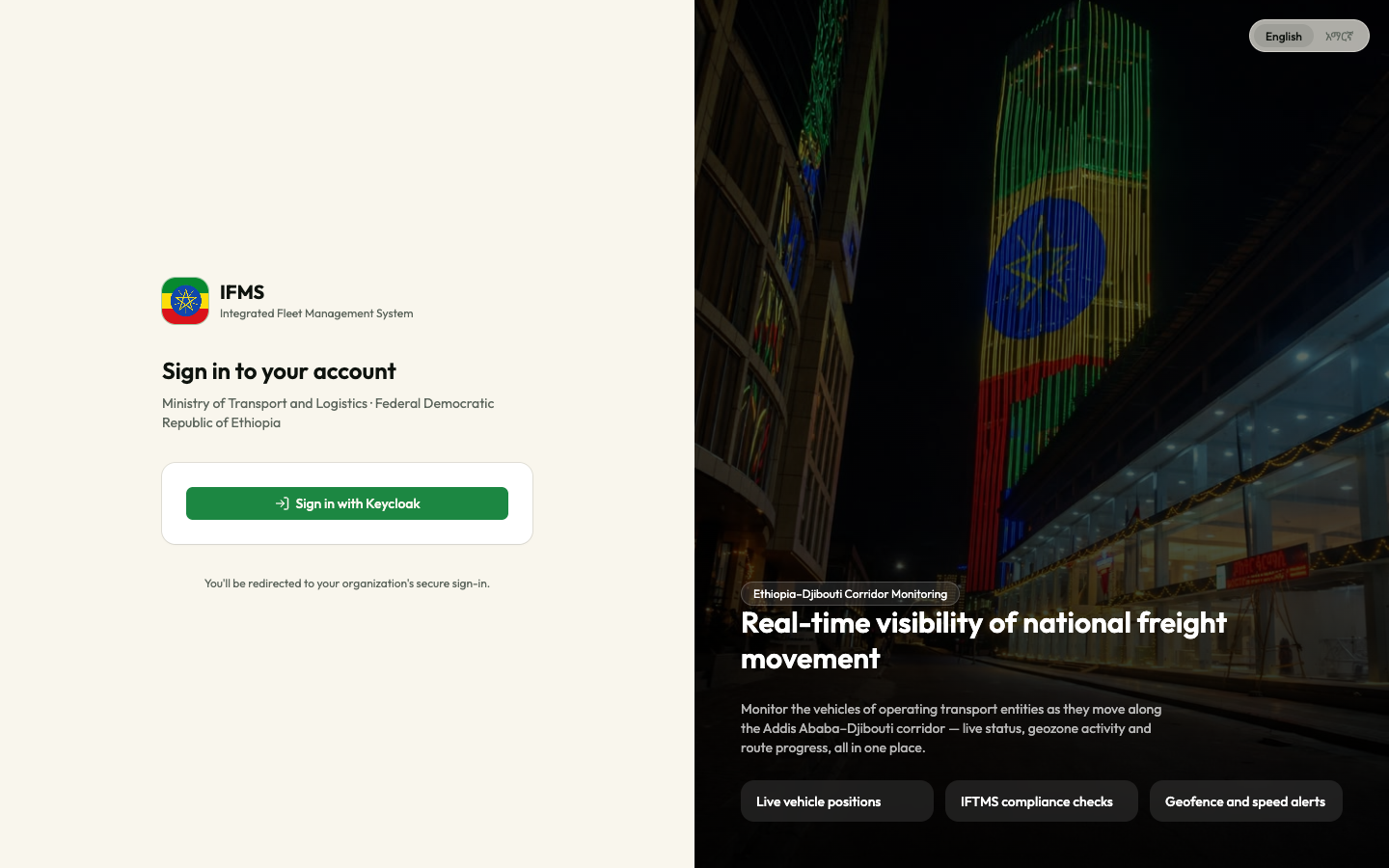
Open the IFMS address. The first screen is the welcome page. It collects nothing: it only sends you on to the ministry sign-in form.
| On the page | What it is for |
|---|---|
| Sign in to your account | The heading, with Ministry of Transport and Logistics · Federal Democratic Republic of Ethiopia beneath it |
| Sign in with Keycloak | The only button. It takes you to the ministry sign-in form |
| "You'll be redirected to your organization's secure sign-in." | A note under the button, telling you the next screen belongs to the ministry sign-in service |
| English / አማርኛ (top right) | The language of the portal. Select one before signing in if you prefer Amharic; the choice is remembered on this computer |
| Developer docs (top right) | A link, in a new tab, to the public instructions for GPS and fleet-management companies. Ministry staff do not need it. On some installations it is not shown |
| The right-hand panel | A description of the system, with three figures (Vehicles monitored, Operating entities, Corridor coverage). They are fixed illustration numbers, not live counts. On a narrow screen the panel is hidden |
Keycloak is the name of the sign-in service the Ministry uses, not a separate system you need an account for. The button simply means "continue to the ministry sign-in".
Sign in
-
Select Sign in with Keycloak.
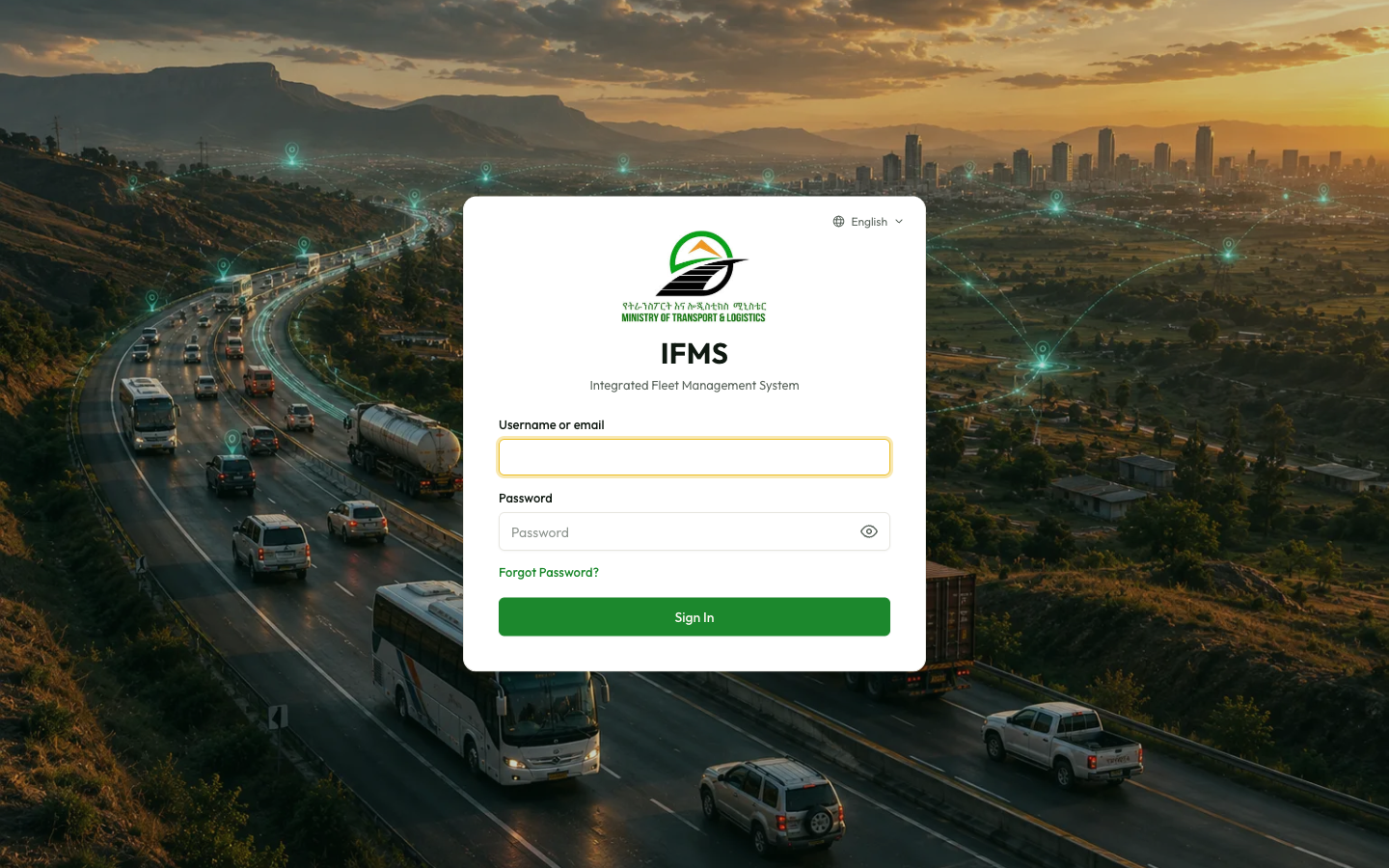
The ministry sign-in form opens. The web address changes, and the page carries the Ministry of Transport & Logistics crest.
-
In Username or email, type the user name or the email address your account was created with.
-
In Password, type your password. To check what you typed, select the eye at the right of the field.
-
Optional: select Remember me if this computer is yours alone. It keeps you signed in to the ministry sign-in service for longer, so the next visit asks for less.
cautionNever select Remember me on a shared or command-centre computer. Anyone using the machine afterwards could return to IFMS without typing a password.
-
Select Sign In.
| Field | Required | What to enter | Rules and messages |
|---|---|---|---|
| Username or email | Yes | The user name or email address of your IFMS account | Left empty, the form asks you to fill it in |
| Password | Yes | Your own password | Never shared. The sign-in service rejects a wrong pair with a message such as Invalid username or password, and repeated failures can lock the account for a while |
| Remember me | No | Tick only on a private computer | — |
The sign-in page has its own language menu at the top — English or አማርኛ — which is separate from the portal's own language switch.
What you see after signing in
You are returned to IFMS and land on the Overview dashboard. The menu on the left, the search box and the header icons are then available on every page.
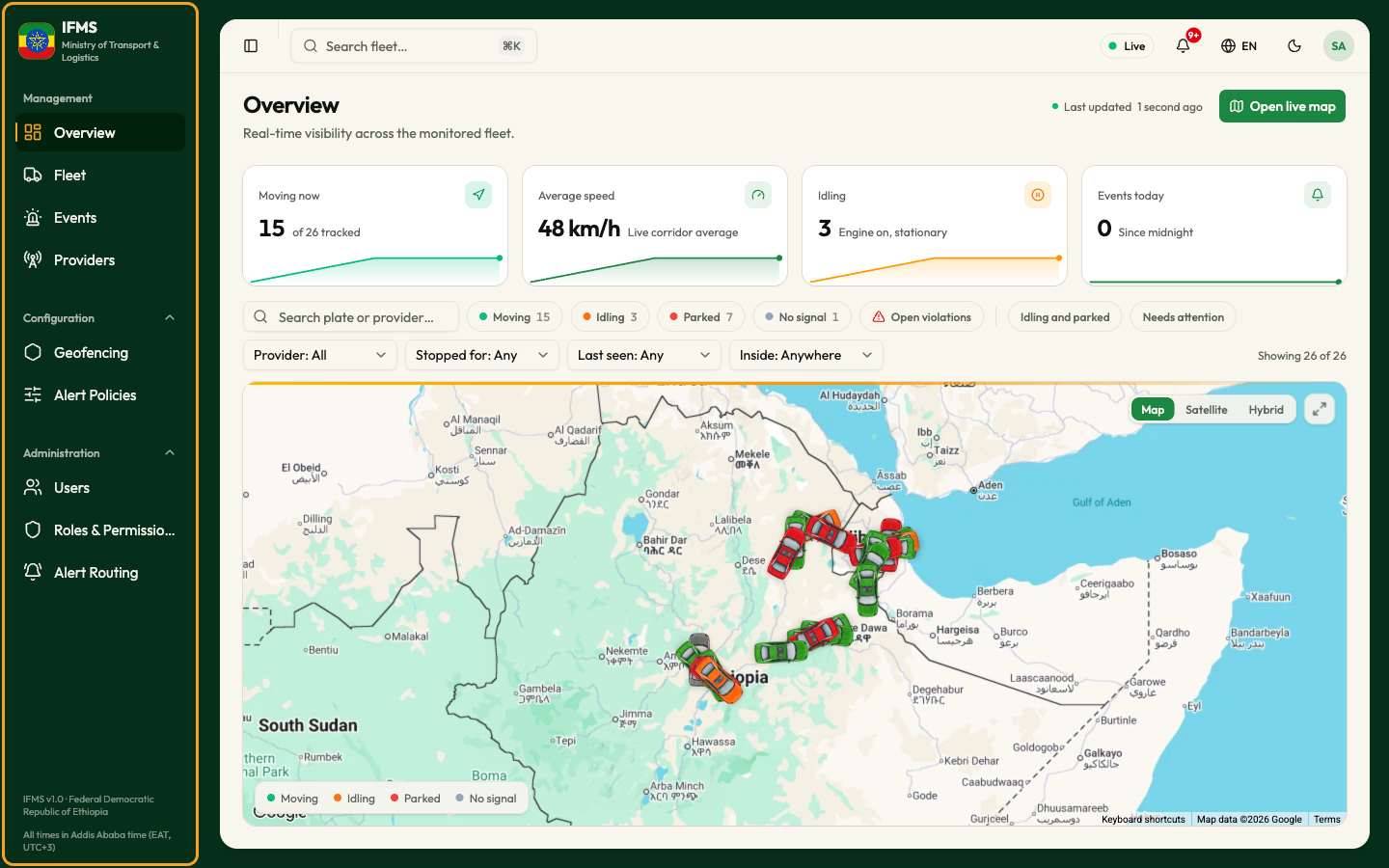
You always land on Overview, even when you originally opened a link to another page, such as a notification link. Reopen the link from your Inbox, or use the menu, once you are in.
The first moments after sign-in can look odd and then settle:
- The menu may show every item for a second and then shorten. IFMS is loading your rights and removing what you may not use.
- The map may be empty until the first positions arrive.
Find your way around explains everything on this screen.
Your first sign-in
New accounts have no password. When an administrator adds you, IFMS sends an email with the subject "Welcome to IFMS — your account is ready". It greets you by name, gives the user name your account was created with, and contains a link.
- Open the email and follow its link. The link is single-use and expires — 7 days by default.
- Choose a password on the page that opens, and confirm it.
- You arrive at the IFMS sign-in form with your email already filled in.
- Type the password you just chose and select Sign In.
Until you set a password, the account cannot be used. If you were not expecting the email, tell your administrator instead of following the link.
If the link has expired, do not ask for a new invitation: use Forgot Password? below. It sends a fresh link.
If you forget your password
Administrators cannot see or set passwords, and IFMS never shows one. Recover it yourself.
-
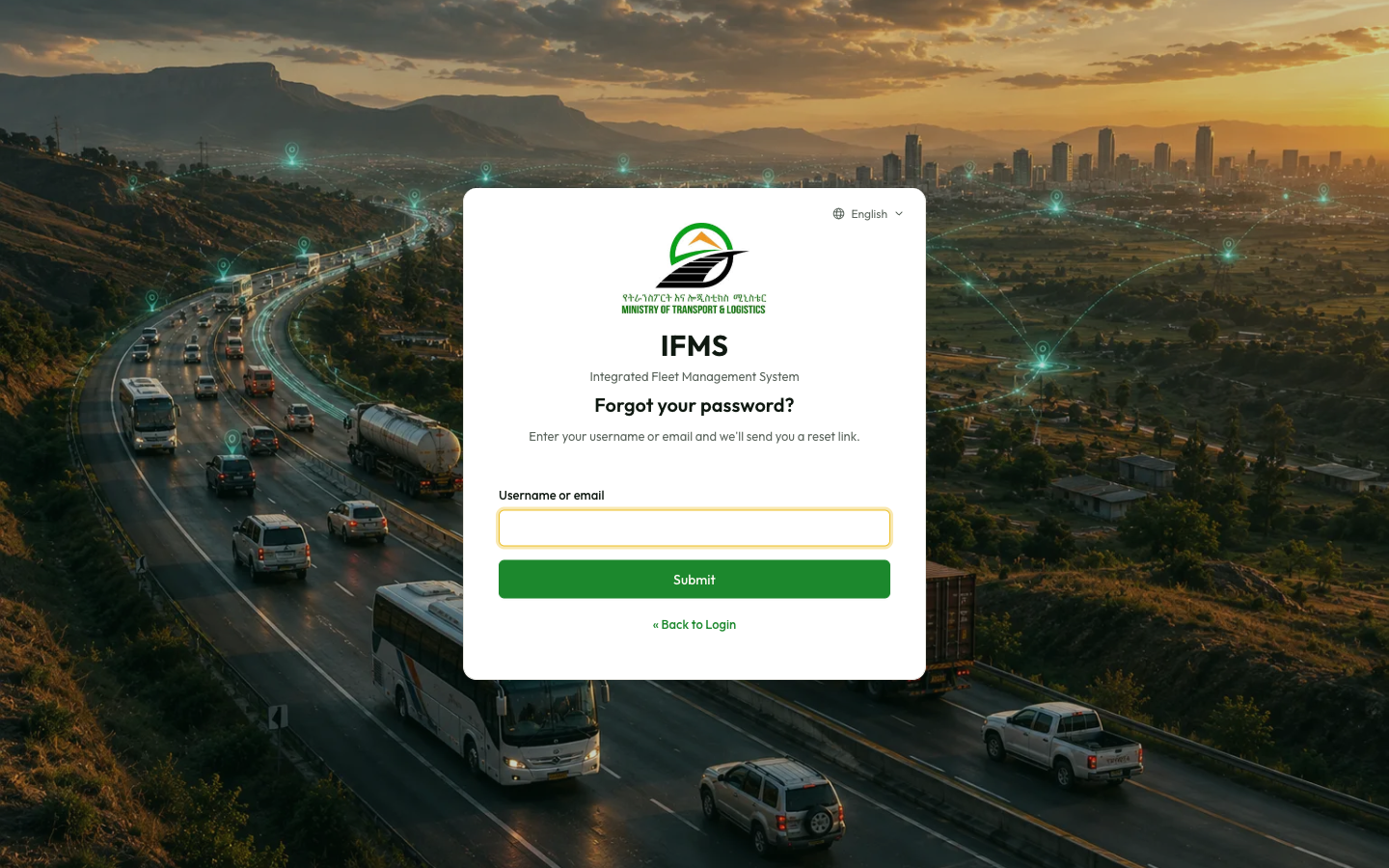
On the sign-in form, select Forgot Password?.
-
In Username or email, type your user name or email address.
-
Select Submit. A message confirms that instructions were sent, and an email with the subject "Set your IFMS password" arrives.
-
Follow the link in that email — it is valid for about 12 hours — choose a new password, and sign in with it.
To go back without sending anything, select « Back to Login.
If no email arrives, check the spam folder, then confirm with your administrator that the address on your account is the one you are watching. The address on an account cannot be changed by you.
"Access denied"
Some pages need rights your role does not include. Opening one shows the Access denied panel inside the normal workspace: the menu and header stay where they are, and the web address does not change.
It shows a shield icon, the heading Access denied, the text "You don't have permission to view this page. If you think this is a mistake, contact your administrator.", and a Back to overview button that returns you to the dashboard.
You are most likely to meet it by:
- typing or following a link to a page your role does not cover;
- selecting a search result — the search box is available to everyone, but the vehicle or area behind the result may not be;
- selecting Open live map on the Overview without the right to see vehicles.
Select Back to overview, and ask your administrator for the right role if you need that screen. Nothing is broken and nothing was changed.
If something goes wrong
| What you see | What to do |
|---|---|
| The page sits on a spinner for a long time | Reload the page. IFMS checks your session and your rights first; a slow answer looks like nothing happening |
| Only Overview is listed in the menu, though your role allows more | Your rights failed to load, usually a temporary fault. Reload the page; if the menu is still short after a second try, tell your administrator |
| A red message appears in the top-right corner | An action failed. Note the wording, reload, and try again; see Troubleshooting |
| You are back on the welcome page without asking | Your session ended — see Your session and signing out |
| Selecting Sign in with Keycloak signs you straight in, without asking for a password | The ministry sign-in service still holds your session. On a shared computer, always finish with Sign out from the user menu |
Related pages
- Find your way around
- Your session and signing out
- Users — how accounts are created, for administrators