Find your way around
Every signed-in page of IFMS has the same frame: a menu down the left, a header across the top, and the page itself in the middle. Learn the frame once and you can work anywhere in the portal.
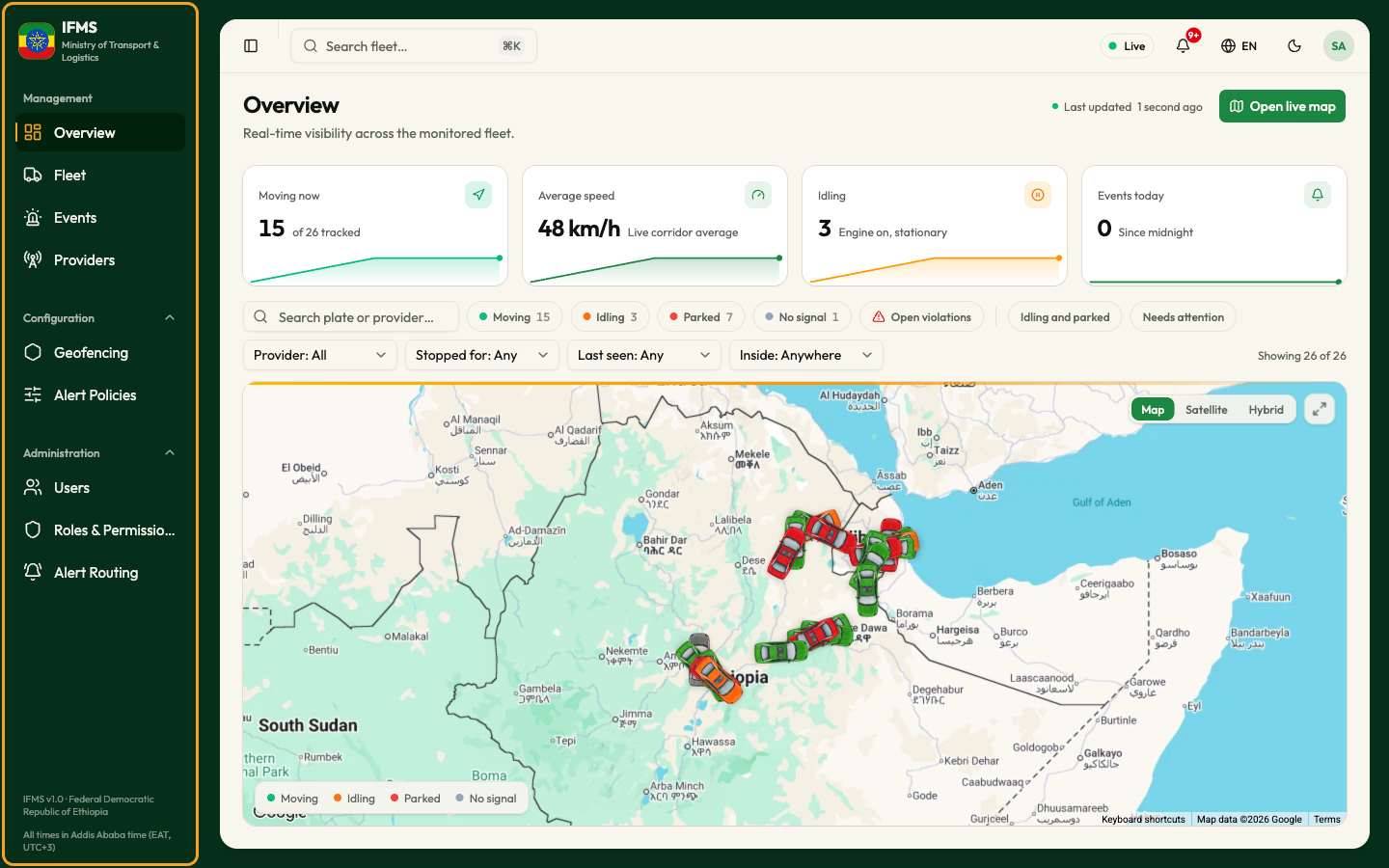
The menu
The menu lists the screens you are allowed to open, in three groups.
| Group | Item | What it opens |
|---|---|---|
| Management | Dashboard | Tiles summing up the fleet, its alerts and the reports. See Dashboard |
| Fleet | Legal vehicles, with search and filters. See Fleet | |
| Events | The alert queue. See Events | |
| Reports | Ready-made reports to read and export. See Reports & Analytics | |
| Providers | The companies that send the data. See Providers | |
| Configuration | Geofencing | The watched areas and their groups. See Geofencing |
| Alert Policies | The rules that raise alerts. See Alert Policies | |
| Administration | Users | Ministry accounts. See Users |
| Roles & Permissions | Roles and their rights. See Roles and permissions | |
| Alert Routing | Who is emailed or texted about which alerts. See Alert routing |
Points worth knowing:
- You see only what your role allows. An item you may not use is not shown, and a group whose items are all hidden disappears with its heading. Every Ministry role sees Dashboard. See What each role can do.
- Configuration and Administration can be folded away: select the group name to close or open it. Management is always open.
- The item you are on is marked with a coloured bar and a coloured icon.
- On a vehicle's own page, Fleet is marked; on a driver's page, Drivers.
- Above the menu is the IFMS logo with Ministry of Transport & Logistics; below it, the version line IFMS v1.0 · Federal Democratic Republic of Ethiopia.
Make the menu narrow
To give the page more room, collapse the menu to a strip of icons. Hovering an icon then shows its name.
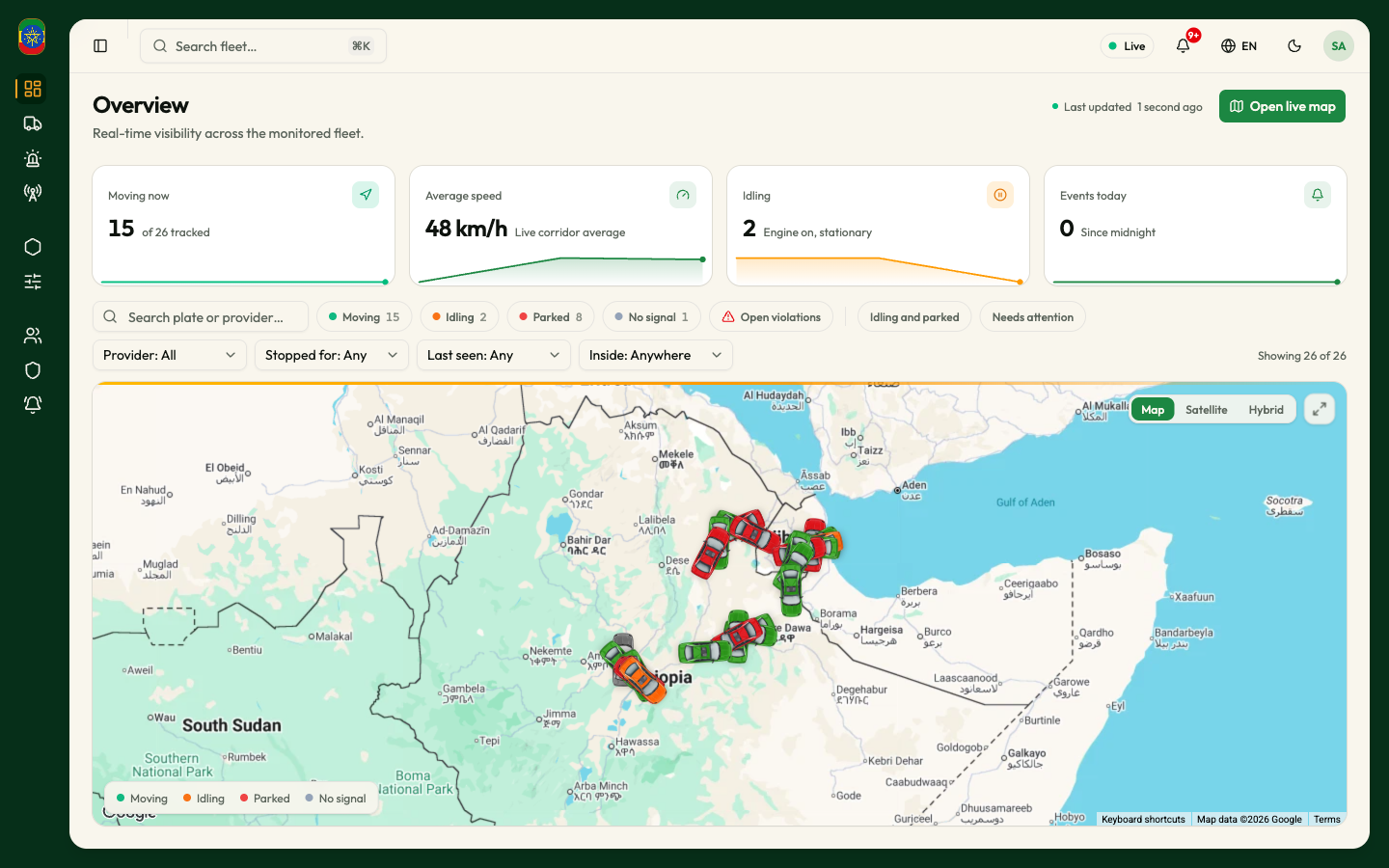
Three ways to collapse or reopen it:
- select the panel button at the far left of the header;
- select the thin bar on the menu's right edge (its tooltip reads Toggle Sidebar);
- press
⌘B(Mac) orCtrl+B(Windows).
The narrow menu is not remembered. Reload the page, or come back tomorrow, and the menu is wide again.
On a screen narrower than about 768 pixels the menu is hidden altogether and slides in over the page when you select the panel button.
The header

From left to right: the panel button that collapses the menu, the fleet search box, the Live badge, the notifications bell, the language switcher, the theme button, and your avatar.
Fleet search
The search box finds vehicles and watched areas from anywhere in the portal.
- Select Search fleet…, or press
⌘K(Mac) orCtrl+K(Windows). The same keys close it again, and so doesEsc. - Type at least three characters. Until then the box says "Type at least 3 characters to search."
- Results appear in groups as you type, up to five per group.
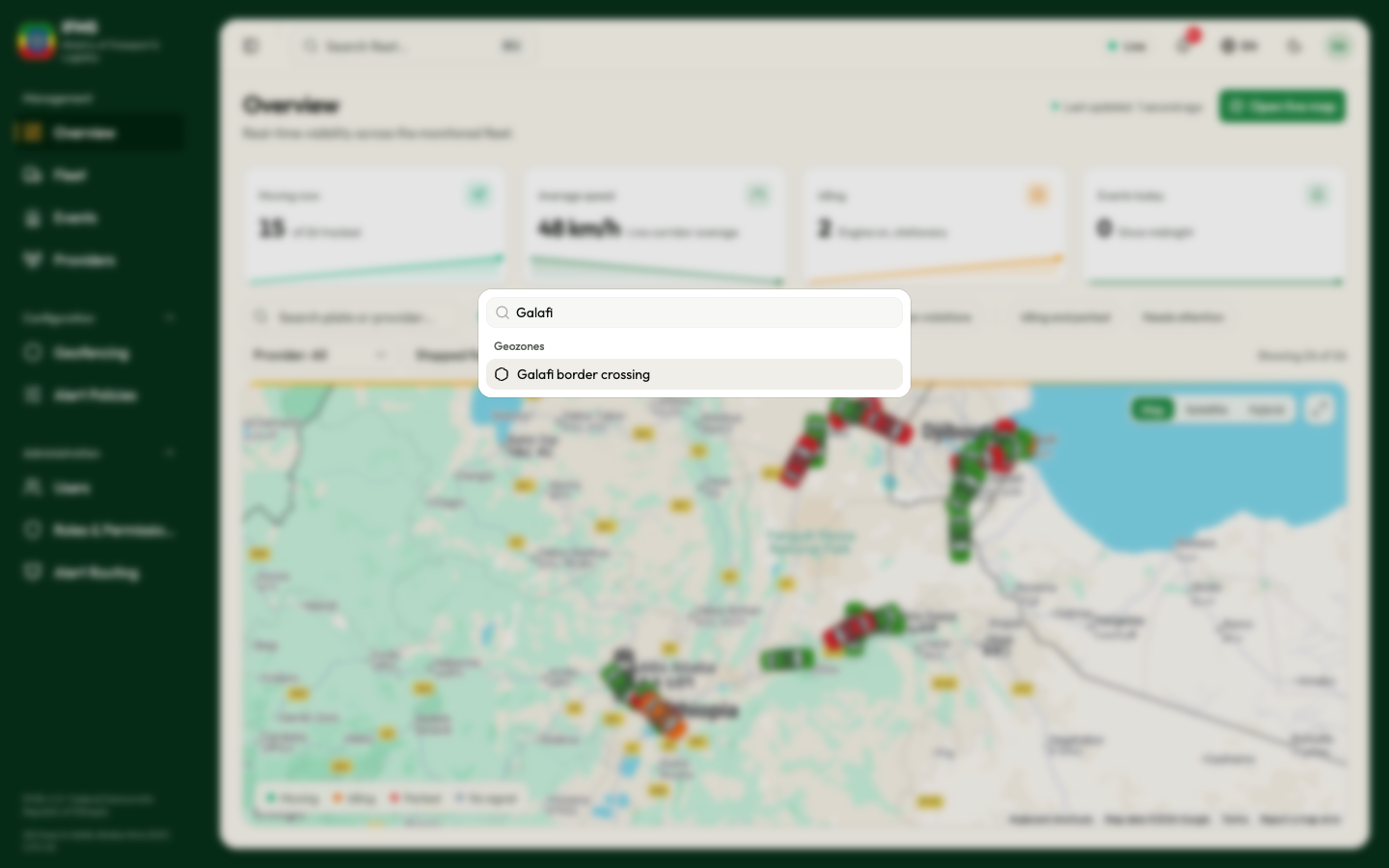
Inside the box, the prompt reads "Search vehicles and geozones…".
| Group | What is matched | What selecting a result does |
|---|---|---|
| Vehicles | The plate, the truck number, the chassis number (VIN), the description, and the provider's name or code | Opens that vehicle's page |
| Geozones | The area's name | Opens Geofencing with that area selected |
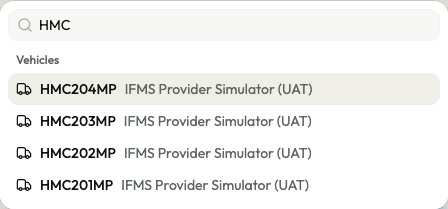
Matching ignores capitals and finds your text anywhere in the value, so HMC finds HMC201MP. When nothing matches, the box says "No results found." Move through results with the arrow keys and open one with Enter; choosing a result closes the box and clears what you typed.
A group only appears if your role lets you open what it finds. Without the right to see vehicles, for example, there is no Vehicles group.
The Live badge
A green dot and the word Live. It marks the portal as running against live data.
The badge never changes. It stays green even if the flow of positions is interrupted and the map has stopped moving. Judge freshness from Last updated on the Overview and from the Last seen column in vehicle lists, never from this badge.
Notifications bell
The bell opens your most recent notifications without leaving the page. A red number on the bell counts the unread ones (9+ above nine) and is refreshed about once a minute.
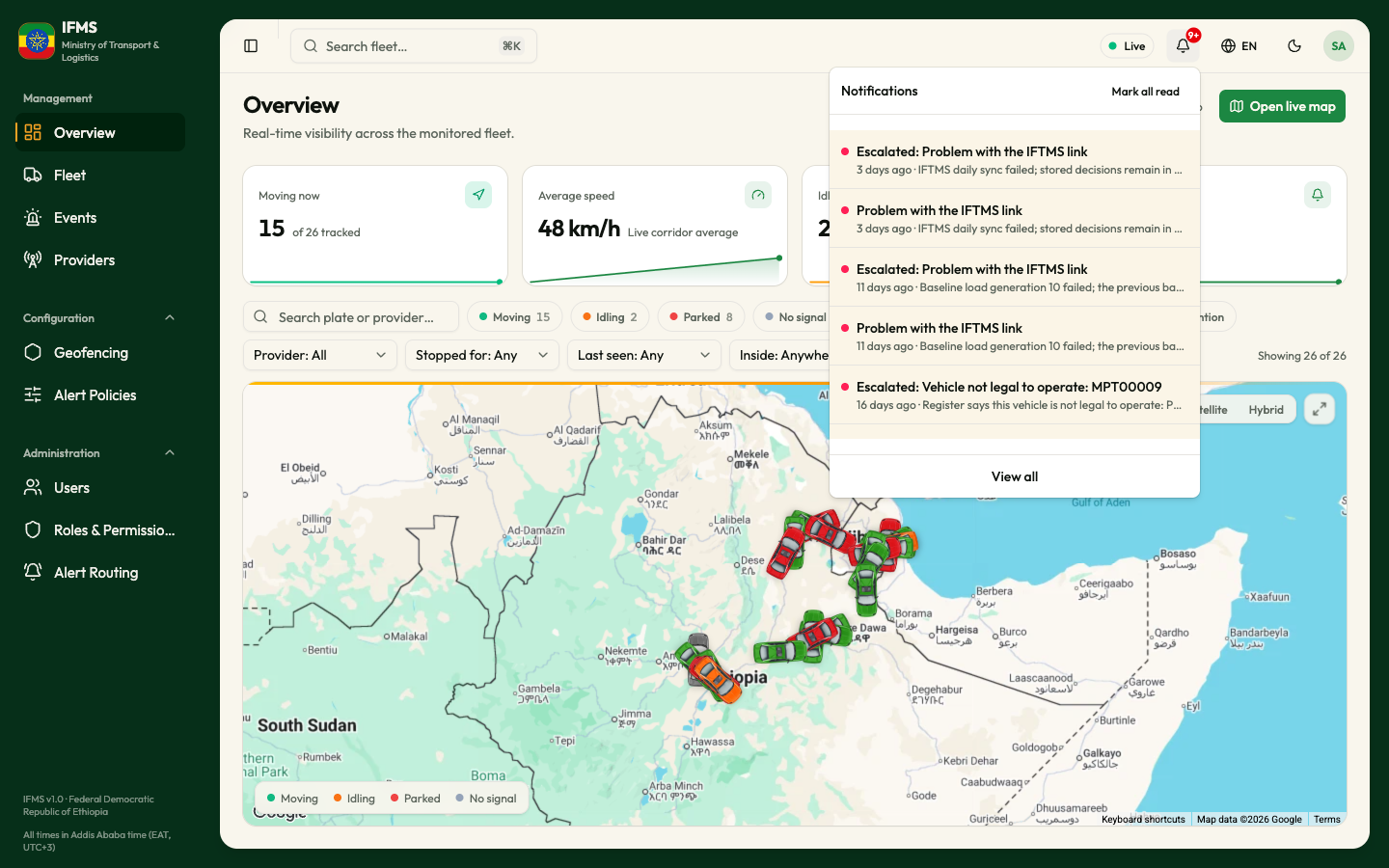
The panel holds the latest items, with Mark all read at the top and View all at the bottom, which opens your full Inbox. When there is nothing, it shows "No notifications yet". Selecting an item marks it read, closes the panel and opens what it is about — usually an alert.
Full detail, including archiving and filtering, is in Inbox.
Language
IFMS is available in English and Amharic. Select the globe — labelled EN or አማ — and choose English or አማርኛ. A tick marks the current language.
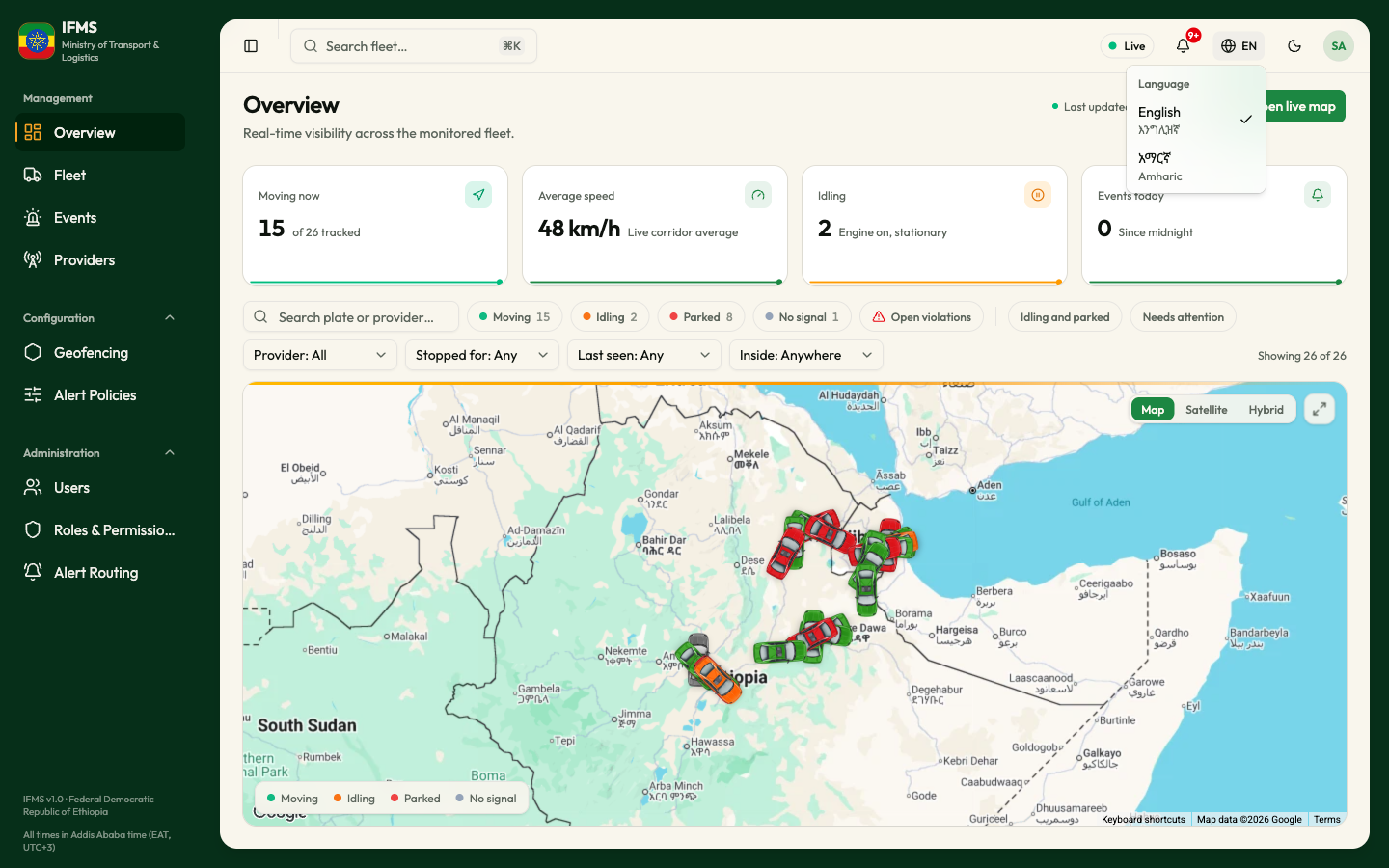
The change is instant, with no reload, and is remembered on this computer — including on the welcome page next time. Dates stay on the Gregorian calendar in both languages.
A few items stay in English whichever language you choose: the map controls (Map, Satellite, Hybrid, Full view), the text on map hover cards, and the ⌘K key hint.
Light and dark
The moon or sun button switches between the light and dark themes. Light is the starting theme. You can also press D anywhere outside a text box.
The choice is remembered on this computer and applies to every IFMS tab you have open. Maps redraw in a dark style to match, which takes a moment.
Your account
The round button at the far right shows your initials. Select it to see who you are signed in as.
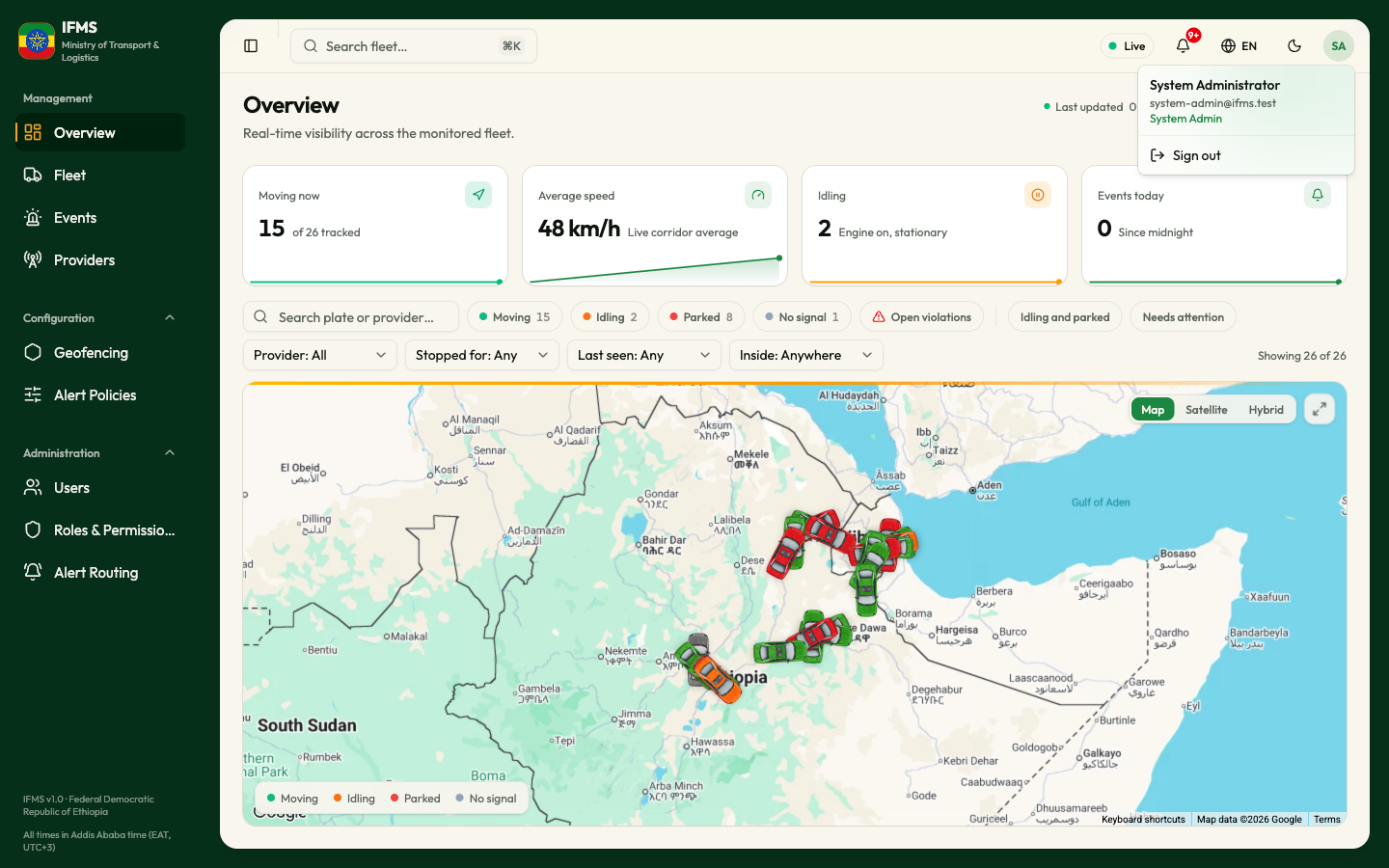
The menu shows your name, your email address, and a role label, then Sign out. There is nothing else here: no profile, no settings, no password change. To change your own details, ask an administrator; to change your password, sign out and use Forgot Password? on the sign-in form.
The role label under your name is a display name worked out from your account, not a statement of your rights. What you may actually do is decided by the roles an administrator gave you.
Signing out is described in Your session and signing out.
Pages that are not in the menu
Two screens have no menu entry. While you are on them, no menu item is marked.
| Page | How to reach it |
|---|---|
| Live fleet map | Overview → Open live map. Also a marker or a table row on any map, which opens one vehicle |
| Inbox | The bell → View all |
Vehicle pages, the geozone editor and the alert-policy wizard are opened from their lists, not from the menu.
Keyboard shortcuts
| Keys | What they do |
|---|---|
⌘K / Ctrl+K | Open or close the fleet search |
⌘B / Ctrl+B | Collapse or reopen the menu |
D | Switch between the light and dark themes (not while typing in a field) |
Esc | Close the search, a menu or a panel; leave the map's full view |
Arrow keys, Enter | Move through search results and open one |
Messages that can appear anywhere
- A small message slides in at the top right when something succeeds or fails. Successes are brief; failures state what went wrong.