Live fleet map
The Live map is the Overview map given the whole page, plus one thing Overview does not have: a table of the same vehicles that you can search and filter.
It shows the same legal vehicles as Overview and Fleet. A vehicle that is not legal, is not registered or has no IFTMS answer yet is hidden from every vehicle view.
Who can see this screen
Anyone whose role allows them to see vehicles. If yours does not, you will get "Access denied" with a Back to overview button. See What each role can do.
How to open it
- Open Overview (the first item in the sidebar, under Management).
- Select Open live map, at the top right.
The Live map is not in the sidebar, and while you are on it no sidebar item is highlighted. The button on Overview is the only way in. To go back, use the Overview button at the top left of the screen - not the browser's back button, which will take you wherever you were before Overview.
The two views
Under the title are two tabs: Map and Table. They show the same vehicles - the same live data - in two forms, and you can switch freely between them.
The portal always opens on Map. Your choice is not remembered, so if you work mostly in the table you will need to select Table again each time you come back.
The Map tab
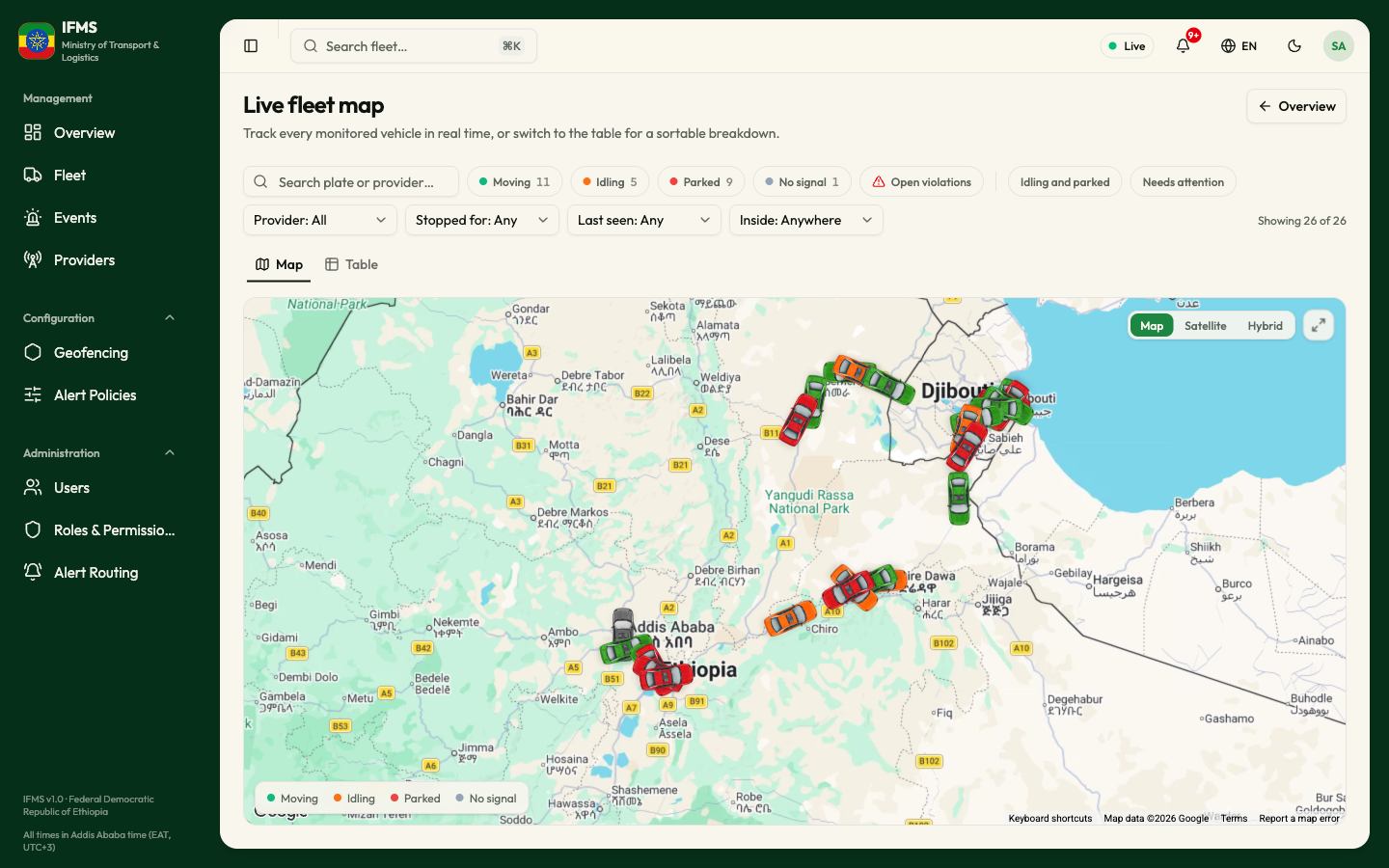
The map behaves exactly as the one on
Overview: scroll to zoom, drag to pan, the
Map | Satellite | Hybrid buttons to change the background, and the
expand button for full view (Esc leaves it). The first time positions arrive
the map zooms out to fit every vehicle, and after that it stays where you put
it.
The legend
The legend sits at the bottom left and lists the four states a vehicle can be in. Each state has its own colour, and the cars on the map use the same colours.
| Status | Colour | What it means |
|---|---|---|
| Moving | Green | The vehicle is travelling faster than 3 km/h, whatever the ignition says. |
| Idling | Orange | The vehicle is standing still with the engine on, or the provider does not report the engine state. |
| Parked | Red | The vehicle is standing still with the ignition off. |
| No signal | Grey | IFMS has had no fresh position from the vehicle for more than 10 minutes. |
Where the statuses come from. IFMS works the state out itself from the positions the provider sends, using the speed and, when the provider reports it, the ignition. The 3 km/h and 10-minute limits are set in IFMS.
If the portal meets a state it does not recognise, it shows the vehicle in pale grey as Unknown. It never shows an unrecognised state as No signal.
Looking at one vehicle
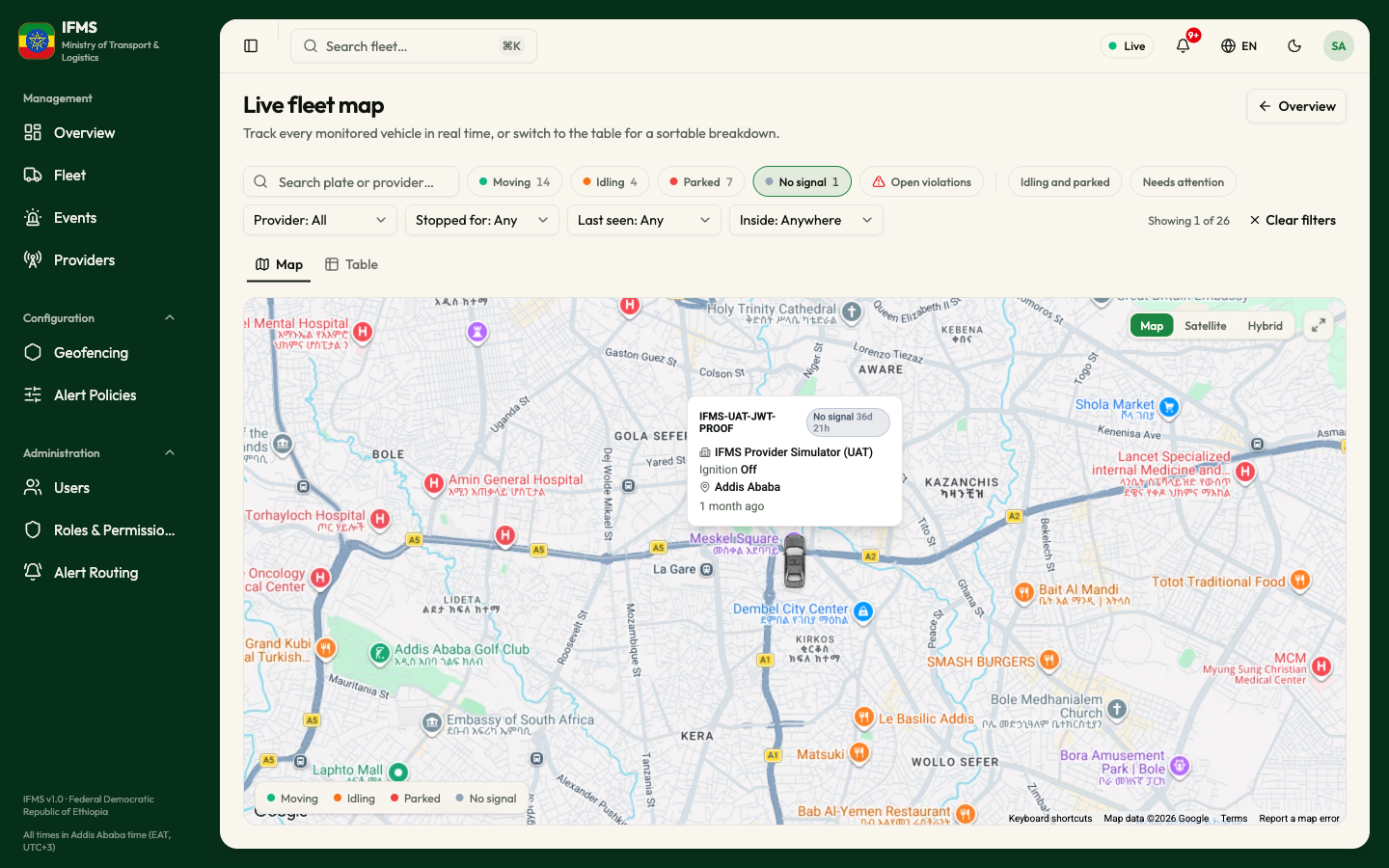
Rest the pointer on a marker for the plate, status, operator, speed, nearest town, the area it is inside, and how long ago it reported. Select the marker to open the vehicle's own page.
The Table tab
Select Table for the same vehicles as rows.
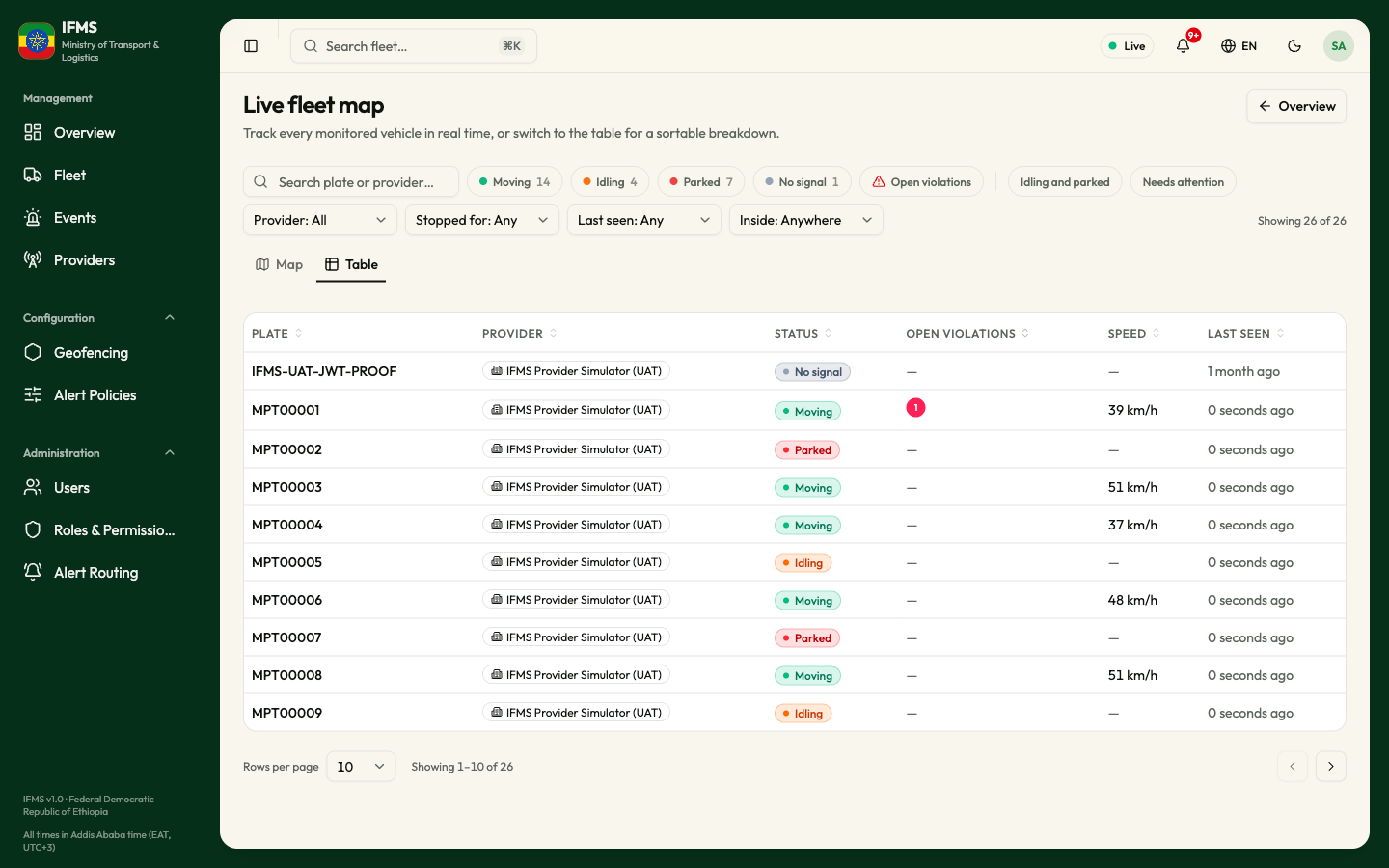
The columns
| Column | What it shows |
|---|---|
| Plate | The number plate, in bold. |
| Provider | The operator sending the data. A dash means IFMS does not know. |
| Status | The same four states as the legend, as a coloured badge, or Unknown. |
| Speed | Shown only while the vehicle is moving. Otherwise a dash - a dash means "not moving", not "unknown". |
| Last seen | How long ago the vehicle reported. Rest the pointer on it for the exact date and time. |
| Open violations | The number of unresolved alerts, coloured by severity. |
The description at the top of the screen calls this "a sortable breakdown", but no column can be sorted: selecting a heading does nothing. Rows appear in the order the data arrived. To find a particular vehicle, use the search box.
Searching
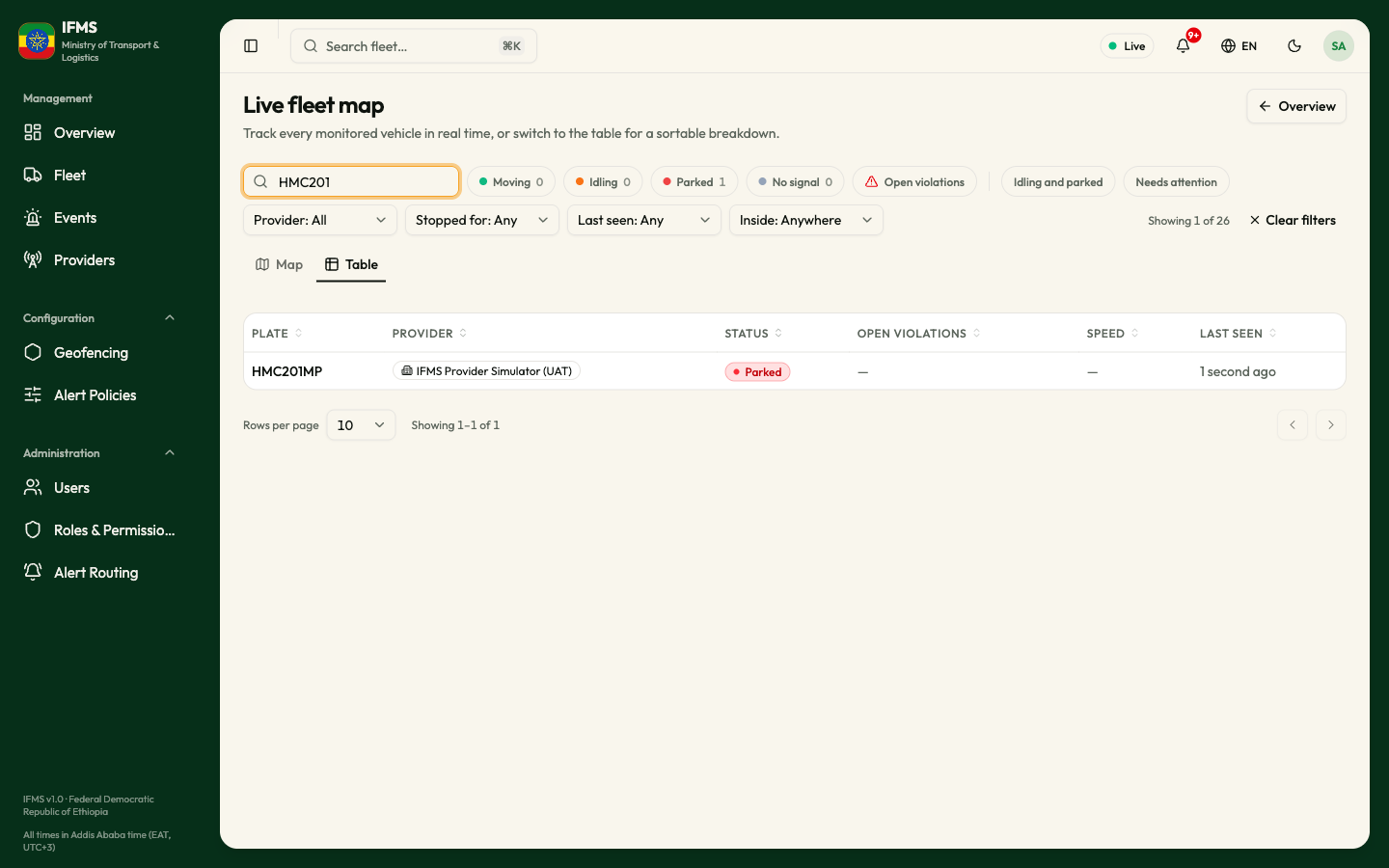
Type into Search plate or provider… above the tabs. It filters both the map and table as you type.
The filters
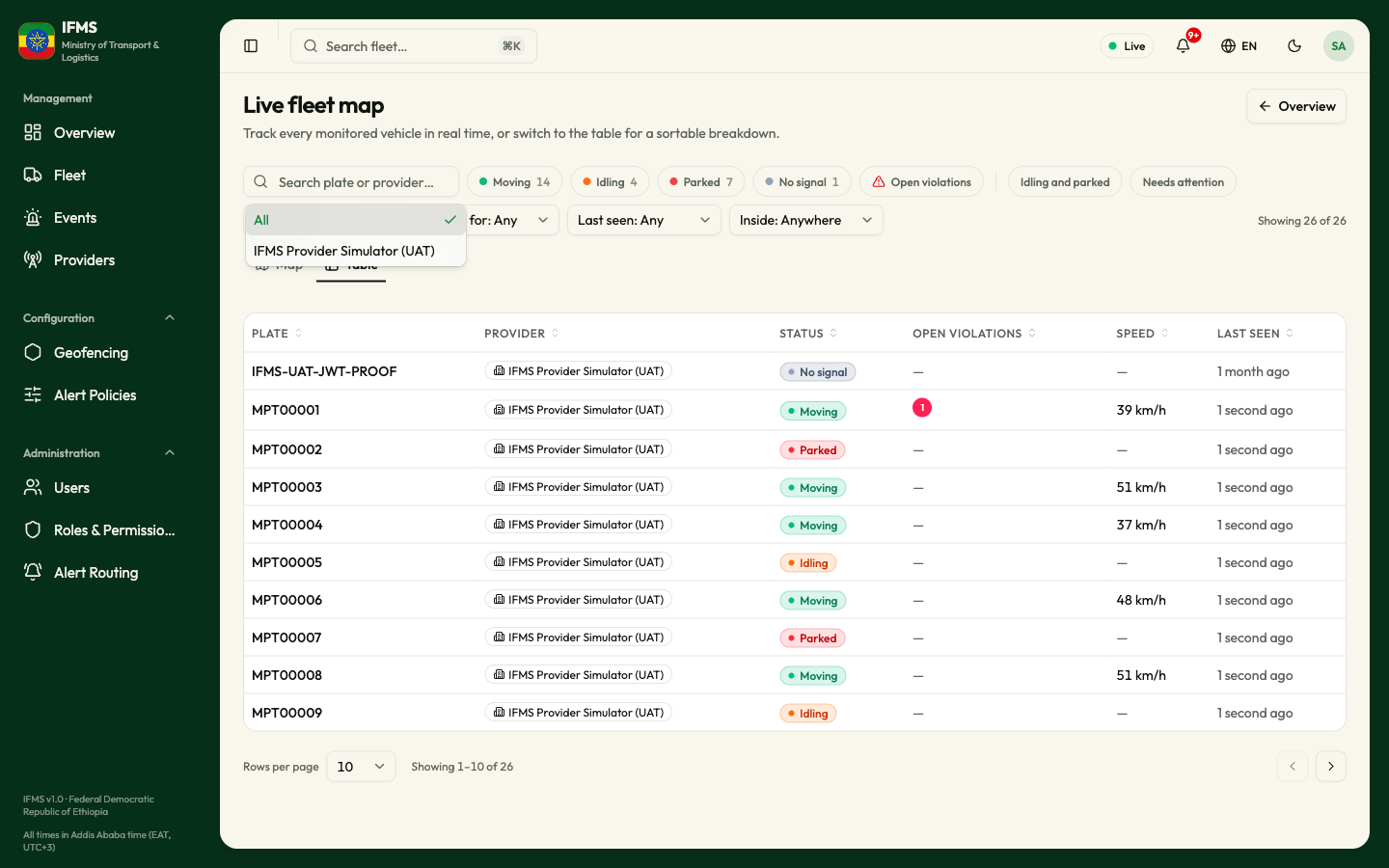
The filters above the tabs apply to both views. Select movement-state buttons, Open violations, or a preset such as Needs attention. The dropdowns narrow by Provider, Stopped for, Last seen, and Inside a geozone. Select Clear filters to clear the search and every filter together.
Opening a vehicle
Select any row - anywhere on it - to open that vehicle's page.
How many rows you see
The footer shows Rows per page, set to 10, and how many vehicles you are looking at, as Showing 1–10 of 20. You can change it to 20, 50 or 100, and move between pages with the arrow buttons at the right. Changing the number of rows takes you back to the first page.
When nothing matches
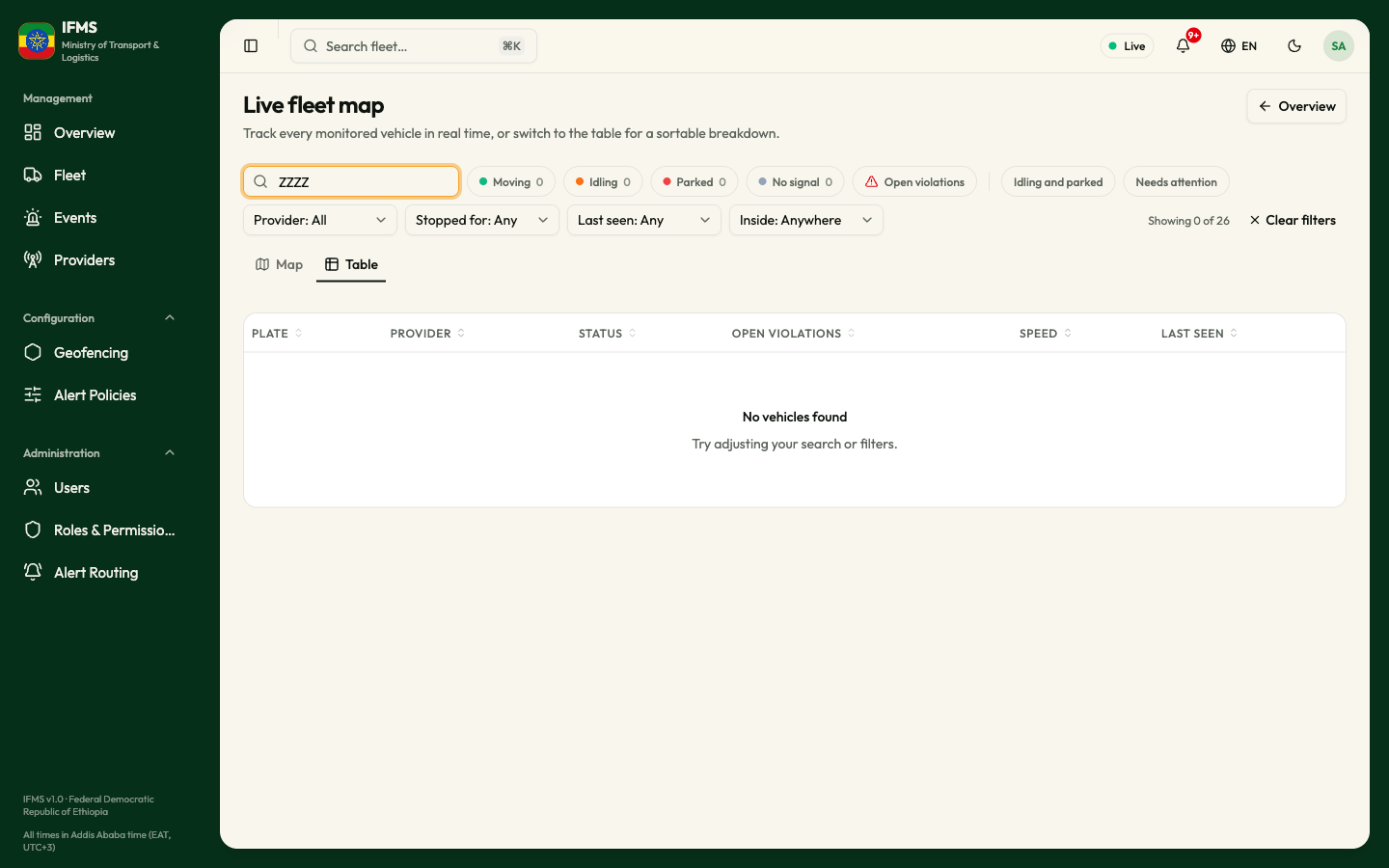
"No vehicles found" with "Try adjusting your search or filters." means either your search and filters exclude everything, or no vehicles are being monitored at all. Clear the search box and set every filter back to All to tell the two apart.
The same message appears for a moment while the page is still loading, before the first vehicles arrive - there is no loading indicator on this screen. If it does not clear after a few seconds, see Troubleshooting.
How often it updates
Positions arrive continuously, about once a second, and markers and table cells change in place as they do. There is no refresh button and you never need one.
If the connection drops, IFMS reconnects on its own. It does not tell you while that is happening: the markers simply stop moving and the Live dot in the header stays green. If nothing on the map has moved for a while, reload the page.